
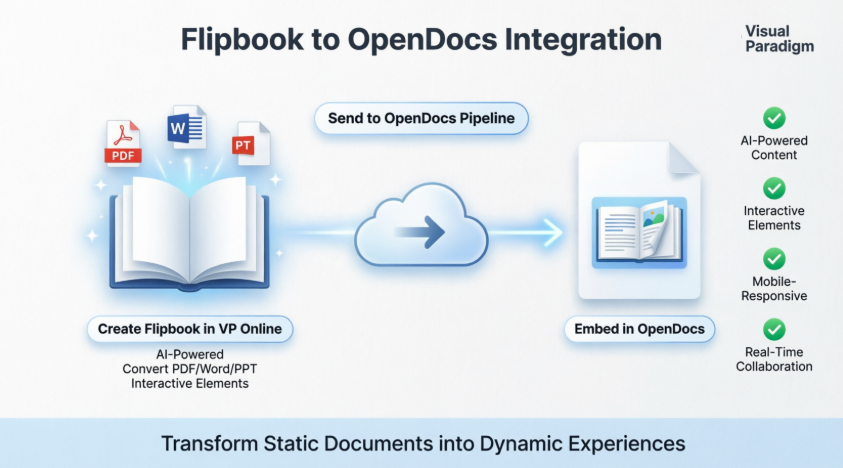
Written by an Experienced Visual Paradigm User | April 2026
💡 Who is this guide for?
If you’ve never used Visual Paradigm Online or OpenDocs before—or you’re just getting started with digital publishing—this guide is for you. I’ll walk you through everything step-by-step, share my personal tips, and help you avoid the common pitfalls I encountered when I first started.
🌟 What Is OpenDocs? (In Simple Terms)
OpenDocs is Visual Paradigm’s AI-powered documentation hub. Think of it as a smart, web-based notebook where you can:
-
Write articles with rich text or Markdown
-
Embed diagrams, charts, and now—interactive flipbooks
-
Organize content in folders (like a digital library)
-
Share your work with teammates or clients instantly
-
Use AI to help draft content, generate diagrams, or answer questions about your docs
It’s designed to be your team’s “single source of truth”—one place where all your project knowledge lives, searchable and always up to date.
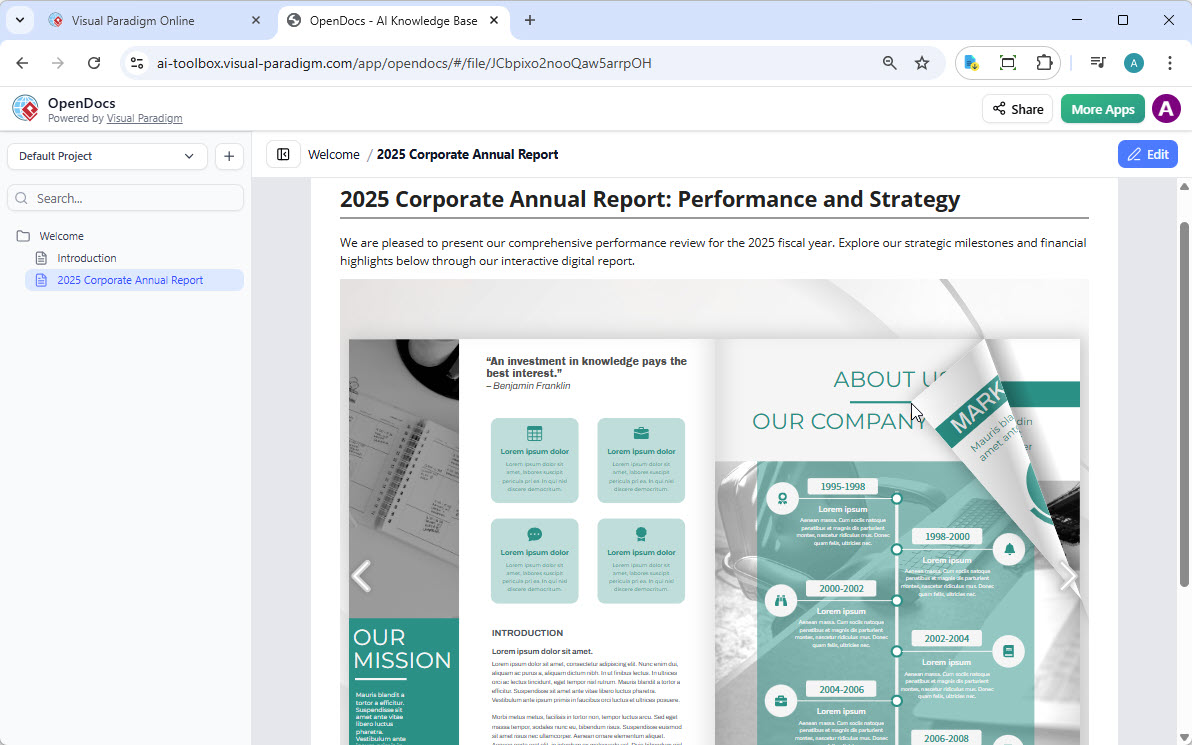
📚 What Are Flipbooks & Digital Bookshelves?
Flipbooks
A flipbook is a digital publication that mimics a real book—with realistic page-turning animations, embedded media, and interactive elements. Instead of sending a static PDF, you can share a flipbook that:
-
Plays videos or audio clips on specific pages
-
Includes clickable links and navigation
-
Works beautifully on phones, tablets, and desktops
-
Carries your brand colors, logos, and styling
Digital Bookshelves
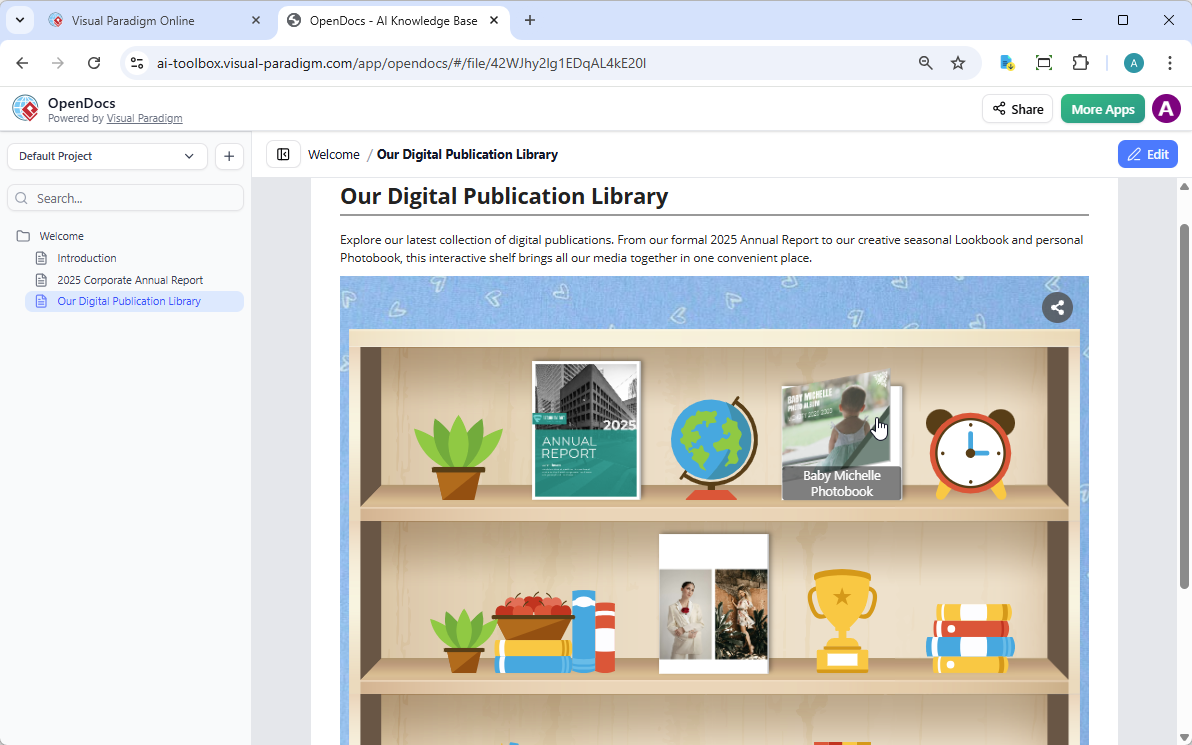
A bookshelf is a curated collection of flipbooks displayed on a virtual shelf. Perfect for:
-
Training libraries (e.g., “Onboarding Series”)
-
Product catalogs or lookbooks
-
Portfolio showcases
-
Multi-part reports or whitepapers
🚀 Part 1: How to Share a Flipbook to OpenDocs
✅ Before You Start
-
You need a Visual Paradigm Online account (Combo edition or higher)
-
Your flipbook should already be created or uploaded
-
You need access to an OpenDocs workspace
🔧 Step-by-Step: Send Flipbook to Pipeline
-
Open your workspace in Visual Paradigm Online
-
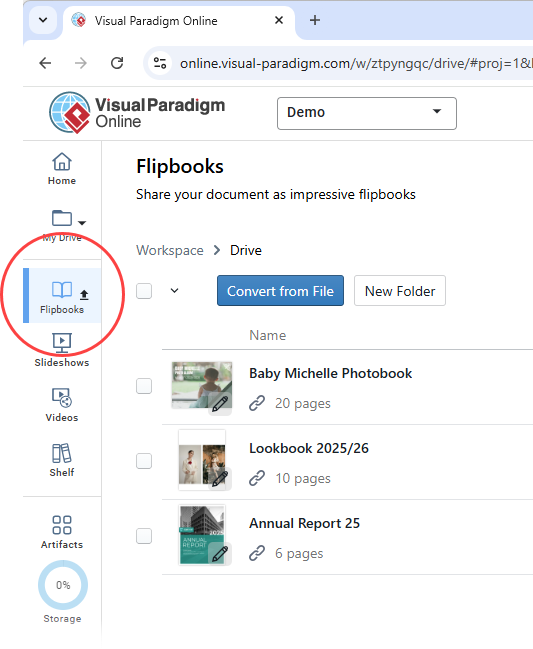
Select “Flipbooks” from the left-hand menu to view your library
-
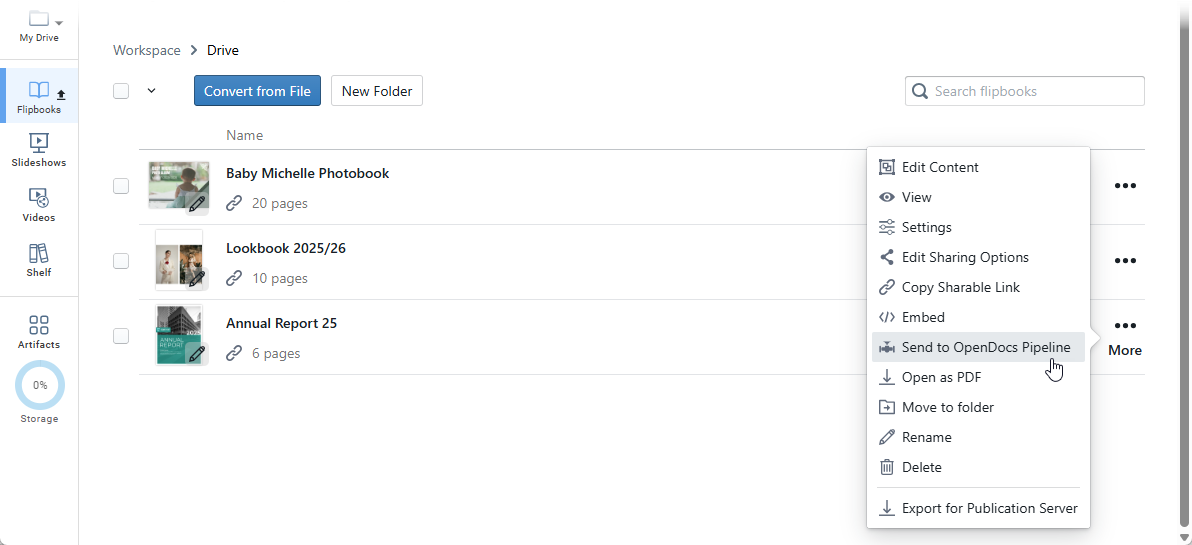
Find your flipbook and click More… on the right side
-
Select “Send to OpenDocs [Pipeline]”
-
(Optional) Add a comment like “Q2 Report – Ready for Review” and click OK
💡 Pro Tip: I always add a short comment when sending items to the pipeline. It helps my team understand the context without opening the file first.
📥 Step-by-Step: Embed Flipbook in OpenDocs
-
Navigate to your OpenDocs page where you want the flipbook
-
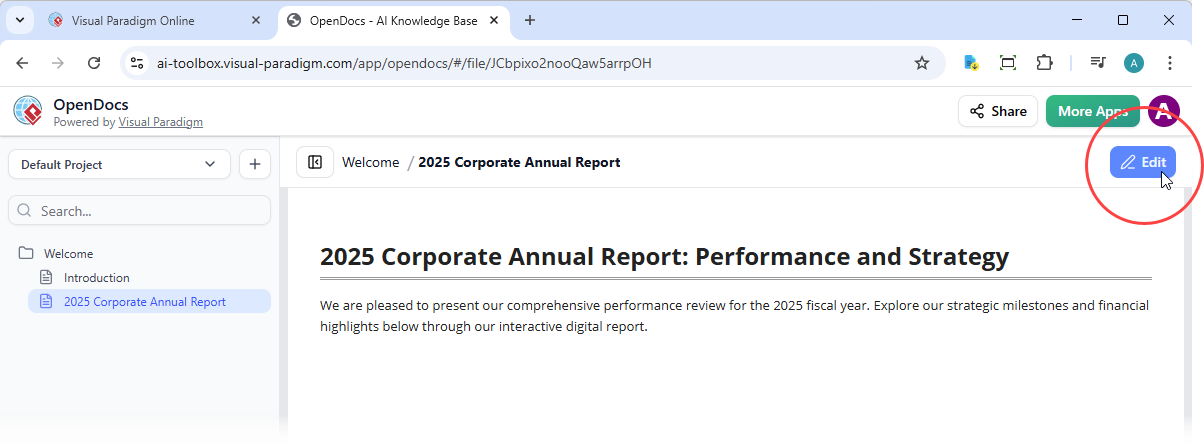
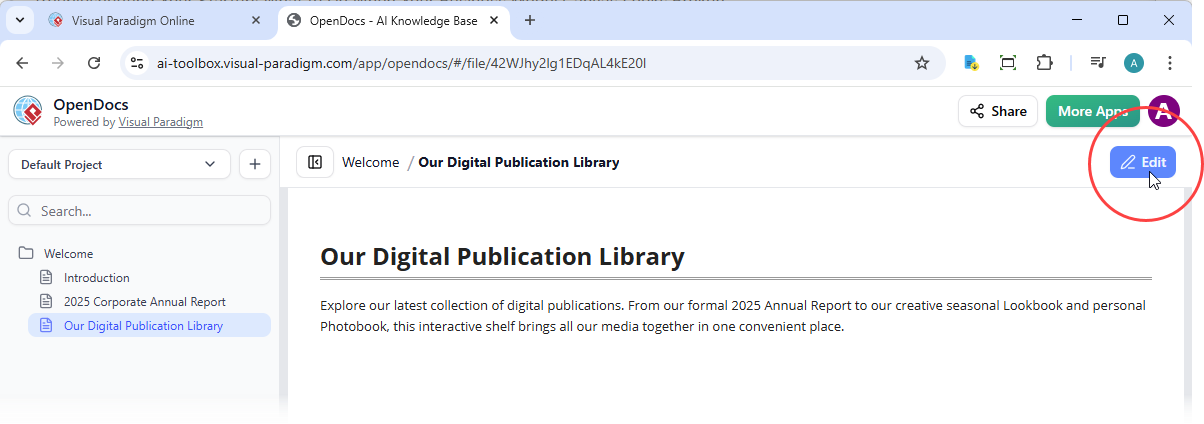
Click “Edit” at the top right
-
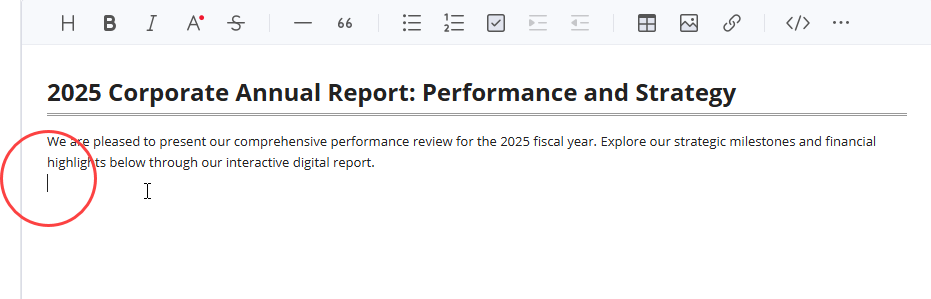
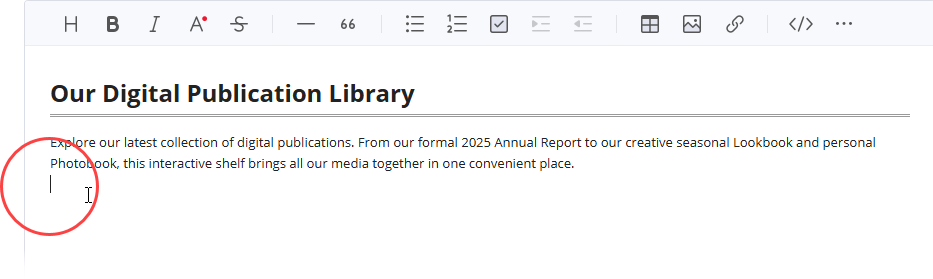
Place your cursor exactly where you want the flipbook to appear
-
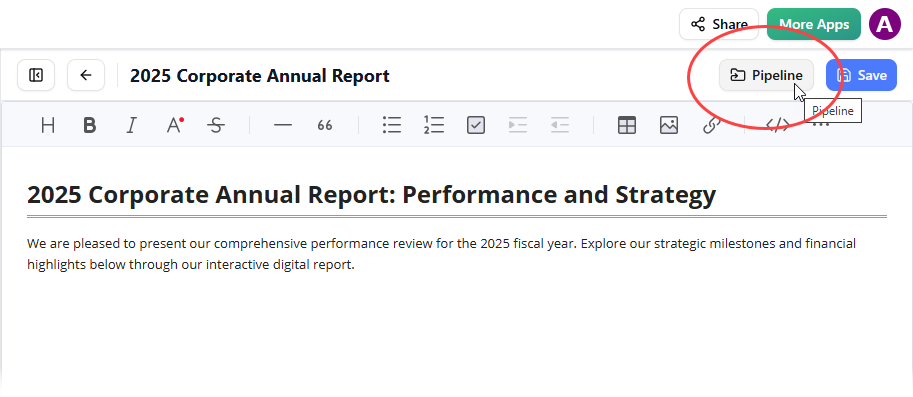
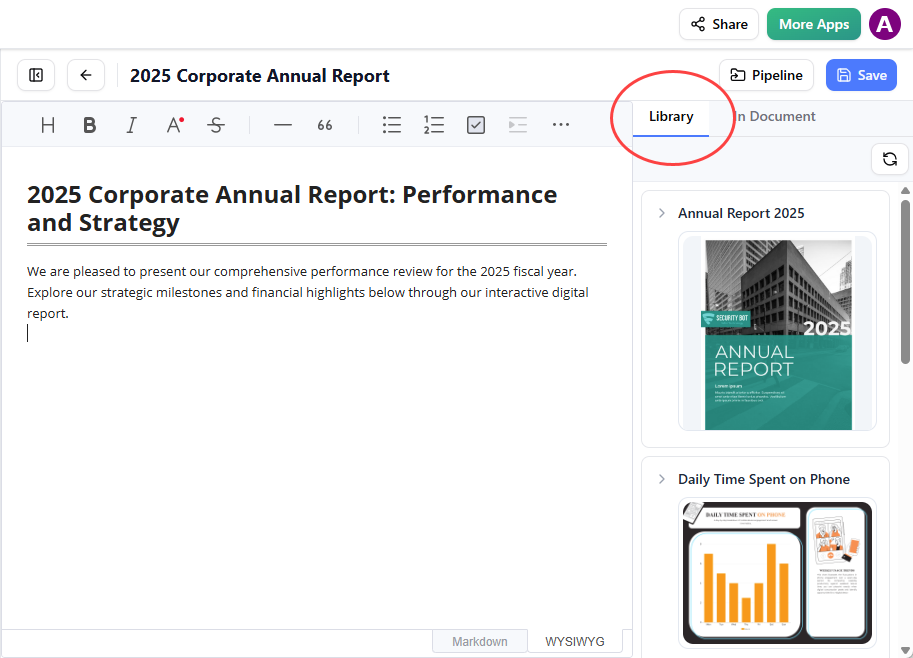
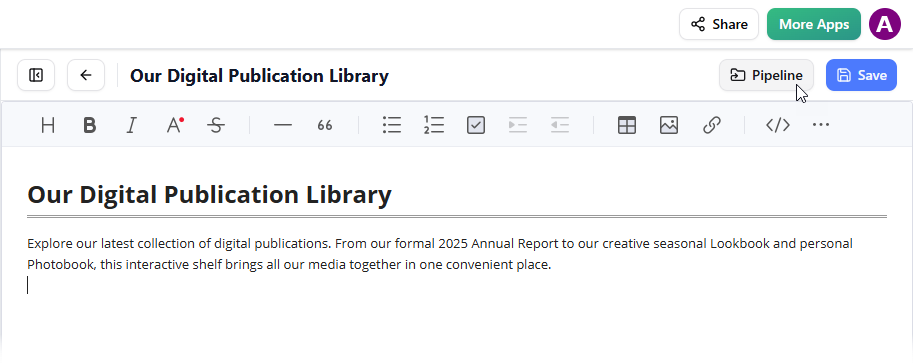
Click the “Pipeline” button (top right corner)
-
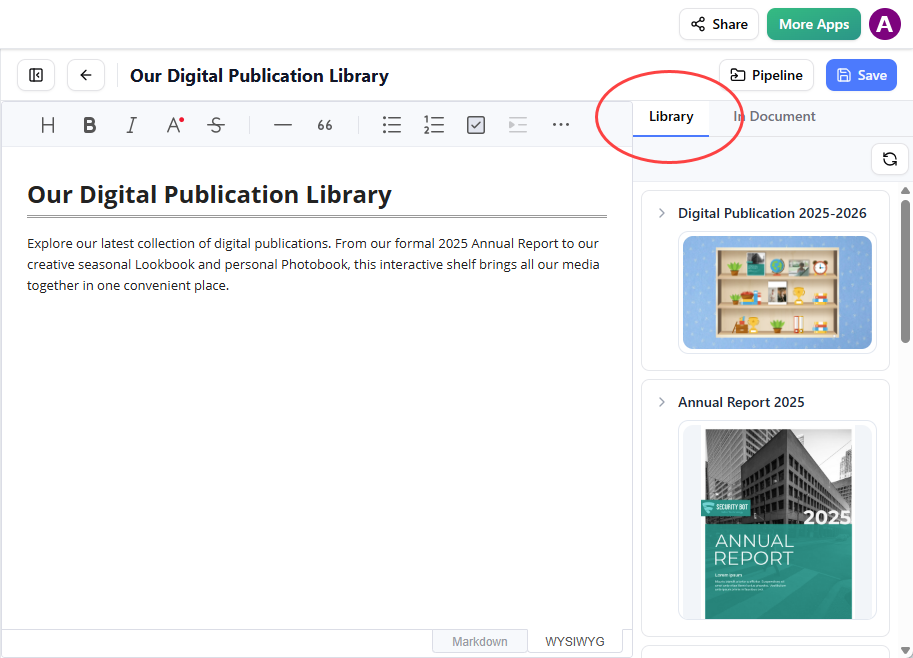
Open the “Library” tab—you’ll see your sent flipbook
-
Click the flipbook to insert it into your page
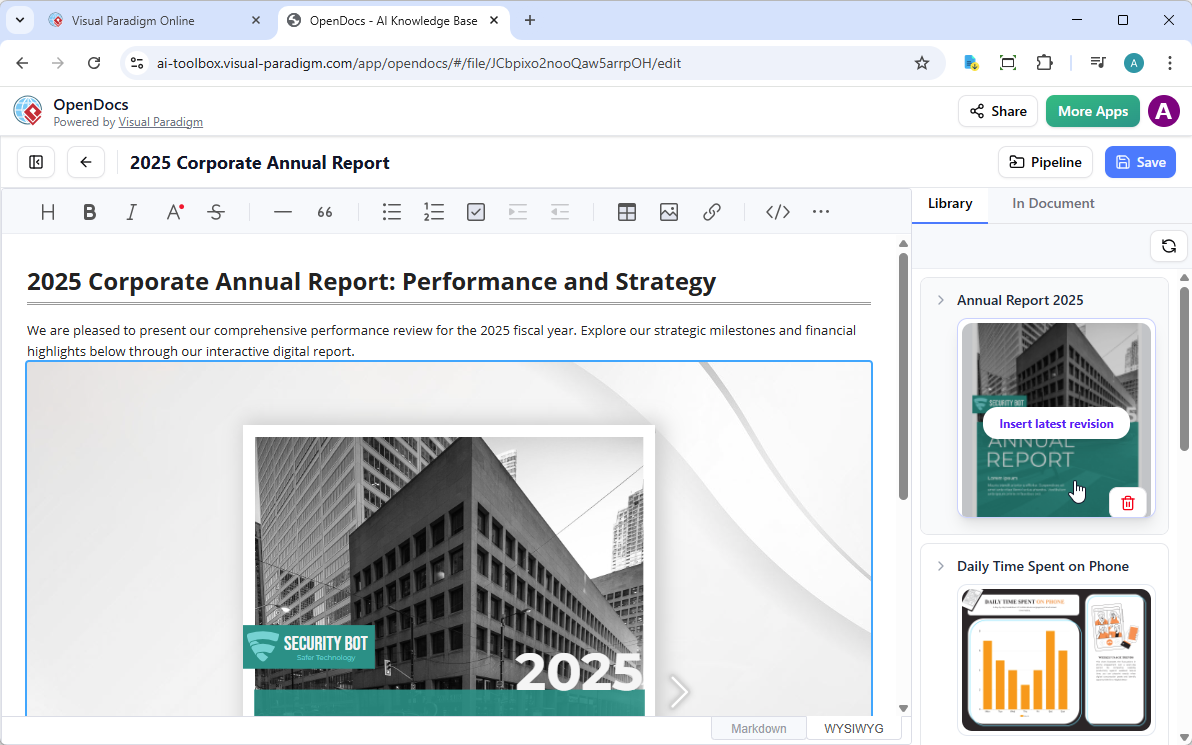
⚠️ Important: In Edit mode, the flipbook appears as a static placeholder. Save and exit Edit mode to interact with it. Then use the Share button to distribute your page.
💡 Pro Tip: If the flipbook gets stuck at the end of your page, select it and press Enter to create a new line below it. This tiny trick saved me so much formatting time!
🗂️ Part 2: How to Share a Digital Bookshelf to OpenDocs
🔧 Step-by-Step: Send Bookshelf to Pipeline
-
Open Visual Paradigm Online and go to your workspace
-
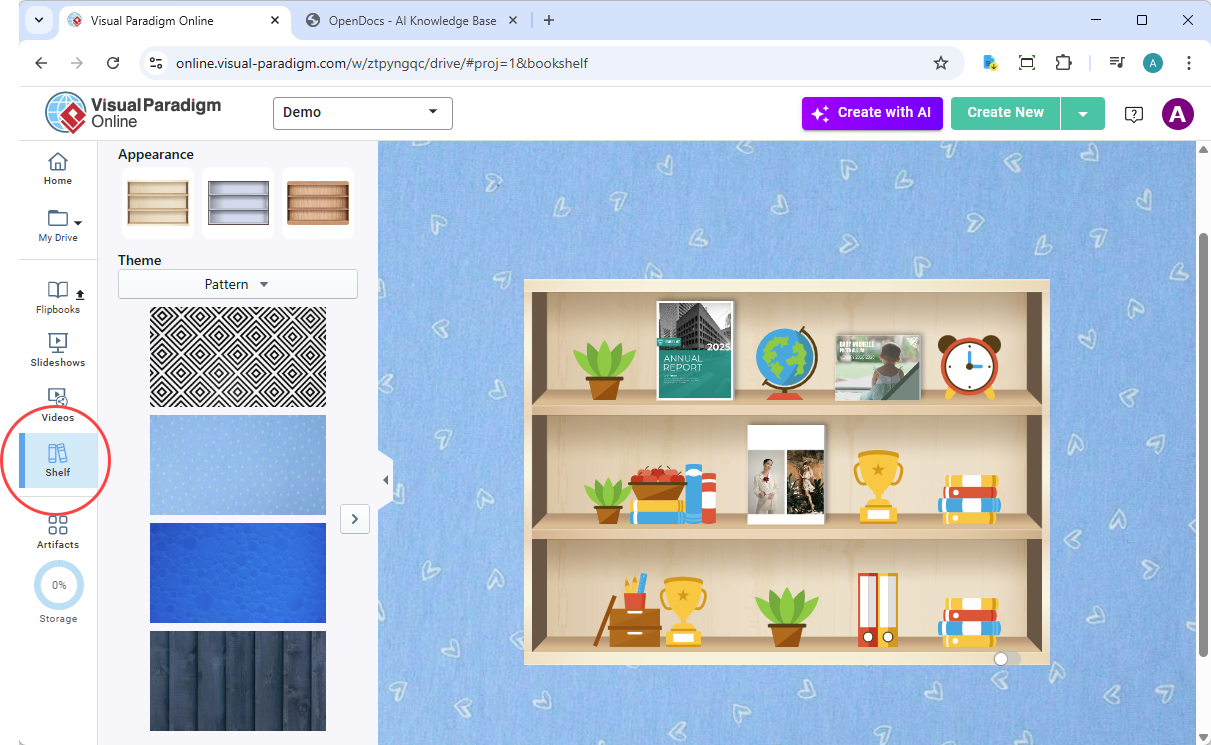
Select “Shelf” from the left-hand menu
-
Choose the bookshelf you want to publish
-
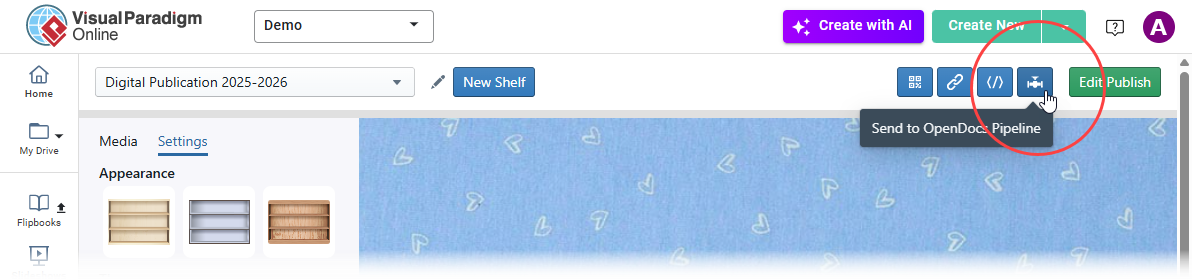
Click the Pipeline icon at the top right
-
(Optional) Add a comment and click OK
📥 Step-by-Step: Embed Bookshelf in OpenDocs
-
Open your OpenDocs page and click Edit
-
Position your cursor where the shelf should appear
-
Click the “Pipeline” button (top right)
-
Open the “Library” tab
-
Select your bookshelf to insert it
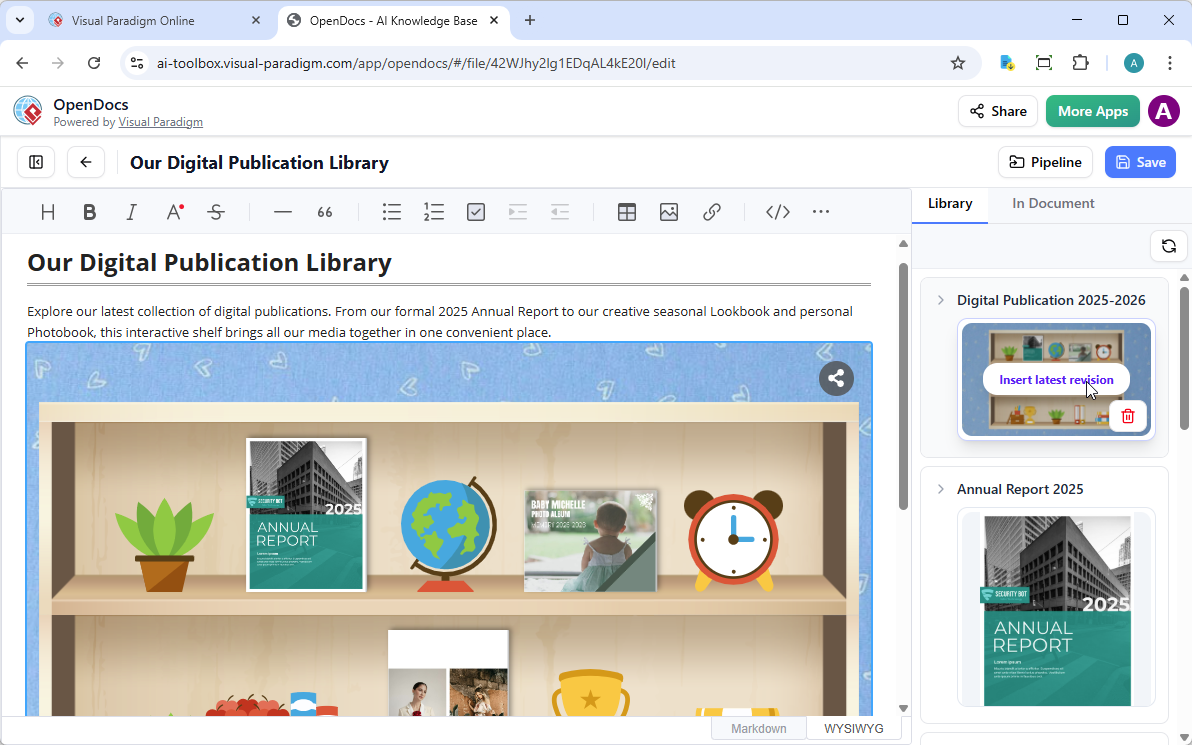
💡 Pro Tip: Just like with flipbooks, press Enter after selecting the shelf to move your cursor below it. This keeps your document flow clean and professional.
💡 My Experience & Recommendations (From a Power User)
✅ What I Love About This Integration
-
No more attachment chaos: Instead of emailing PDFs that get lost, I embed flipbooks directly in project docs. Everyone sees the latest version.
-
Mobile-friendly by default: My clients love reading flipbooks on their phones during commutes—no zooming or scrolling nightmares.
-
AI saves hours: I use the AI assistant to generate flipbook outlines and even create matching illustrations. Huge time-saver for client proposals.
-
Brand consistency: I can apply my company’s colors and logo to every flipbook, making our docs look polished and professional.
⚠️ Common Beginner Mistakes (And How to Avoid Them)
| Mistake | Solution |
|---|---|
| Trying to interact with flipbook in Edit mode | Remember: Save first, then interact. Edit mode is for placement only. |
| Forgetting to check mobile preview | Always test your embedded flipbook on a phone before sharing externally. |
| Overloading a single flipbook | Keep flipbooks focused. Use bookshelves to group related content instead. |
| Not using descriptive comments in Pipeline | Add context like “Draft v2 – Feedback by Friday” to help your team. |
🎯 Best Use Cases I’ve Tested
-
Client Onboarding Kits
Create a bookshelf with: Welcome Guide, Product Catalog, FAQ Flipbook, and Support Contacts. Share one link—clients love the organized experience. -
Training & Documentation
Embed flipbooks for step-by-step tutorials directly in your internal wiki. New hires can flip through visually instead of scrolling endless text. -
Portfolio Showcases
Designers and consultants: Use flipbooks to present case studies with embedded videos, before/after sliders, and client testimonials. -
Interactive Reports
Turn quarterly reports into flipbooks with clickable charts, video summaries from leadership, and downloadable resources on specific pages.
🔧 Quick Troubleshooting Checklist
❓ Flipbook won’t embed?
→ Make sure you’re using the Pipeline button in OpenDocs, not copy-pasting a link.
❓ Page-turning animation not working?
→ You’re likely still in Edit mode. Save and exit to activate interactivity.
❓ Flipbook looks cut off on mobile?
→ Check your flipbook’s aspect ratio in Visual Paradigm Online. Use 16:9 or 4:3 for best responsiveness.
❓ Can’t find my sent item in Library?
→ Wait ~30 seconds for sync. If still missing, check your Pipeline comment for typos or permission issues.
🌐 Reference List
-
Visual Paradigm OpenDocs Features: Official feature overview of OpenDocs AI-powered knowledge management platform.
-
OpenDocs: AI-Powered Knowledge Platform Announcement: Official release announcement detailing OpenDocs capabilities and AI integration.
-
Visual Paradigm OpenDocs: The Complete Guide: Comprehensive third-party guide covering setup, features, and best practices for OpenDocs.
-
Visual Paradigm OpenDocs: The Complete Guide (Duplicate): Same comprehensive guide resource for OpenDocs users.
-
Visual Paradigm OpenDocs Features Page: Official documentation of OpenDocs writing, collaboration, and integration features.
-
OpenDocs Tutorial Video: Video walkthrough demonstrating OpenDocs interface and core functionality.
-
OpenDocs AI Tool Page: Dedicated landing page for OpenDocs AI-powered documentation tools.
-
Archimetric OpenDocs Guide: Detailed implementation guide with practical examples for teams.
-
AI Breakdown Structure Chart Maker in OpenDocs: Feature release for AI-powered chart generation within OpenDocs.
-
OpenDocs YouTube Tutorial: Visual guide to getting started with OpenDocs workspace and collaboration features.
-
Sync AI Diagrams to OpenDocs Pipeline Guide: Step-by-step instructions for transferring diagrams from Visual Paradigm Desktop to OpenDocs.
-
Mastering the Pipeline in Visual Paradigm OpenDocs: Advanced guide for optimizing the Desktop-to-OpenDocs workflow and knowledge management.
🙋 Still have questions?
I recommend starting with the OpenDocs AI Tool Page for interactive tutorials, or watching the OpenDocs Tutorial Video for a visual walkthrough.Happy documenting! 🚀📖✨