


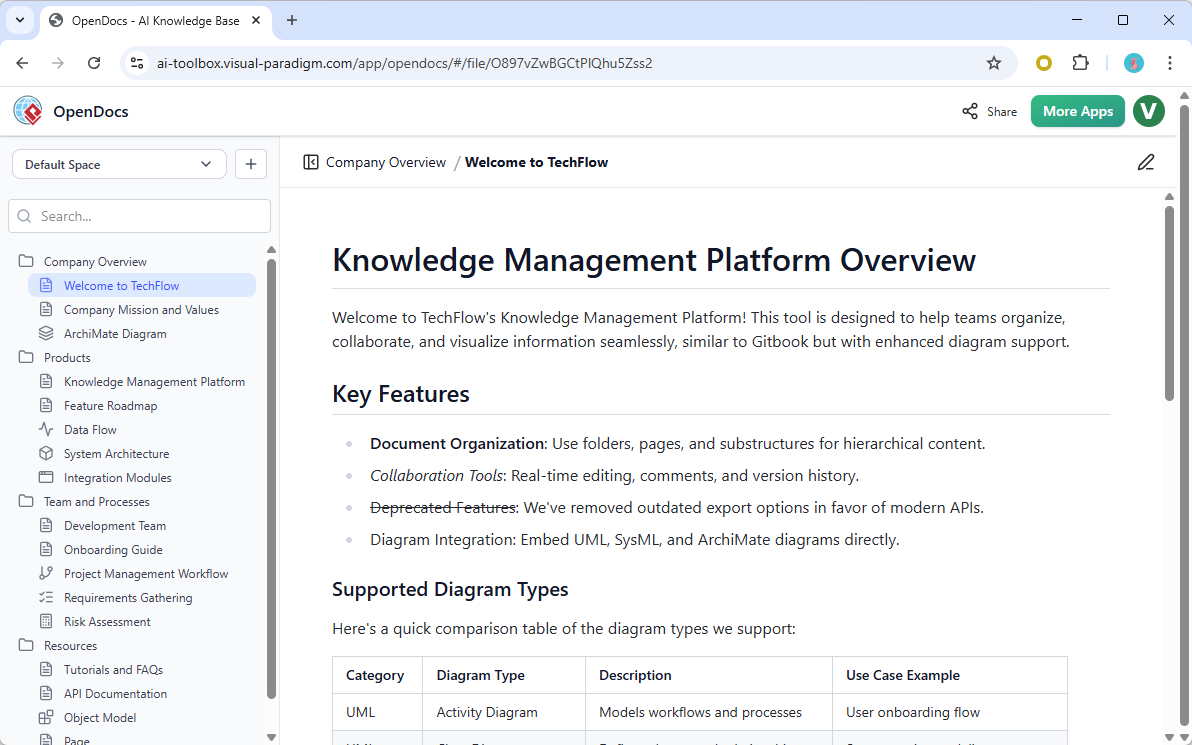
OpenDocs is an AI-powered knowledge management platform and documentation hub designed to serve as a “single source of truth” for teams and individuals. It integrates a rich Markdown editor with a powerful diagramming engine, allowing users to consolidate text-heavy documentation and visual storytelling in one centralized, searchable space.
Key Concepts of OpenDocs
-
AI-Powered Knowledge Management: OpenDocs uses an “AI-enabled core” that transforms static documents into a dynamic repository. It assists in content creation, summarization, and automated diagram generation.
-
Hierarchical Folder Structure: Knowledge is organized using a familiar “tree-like” structure. Users can create nested folders to manage large-scale repositories logically and navigate them via drag-and-drop.
-
Split-Pane Markdown Editor: The platform features a full-featured Markdown editor where users can format text using syntax while viewing a live formatted preview in real-time.
-
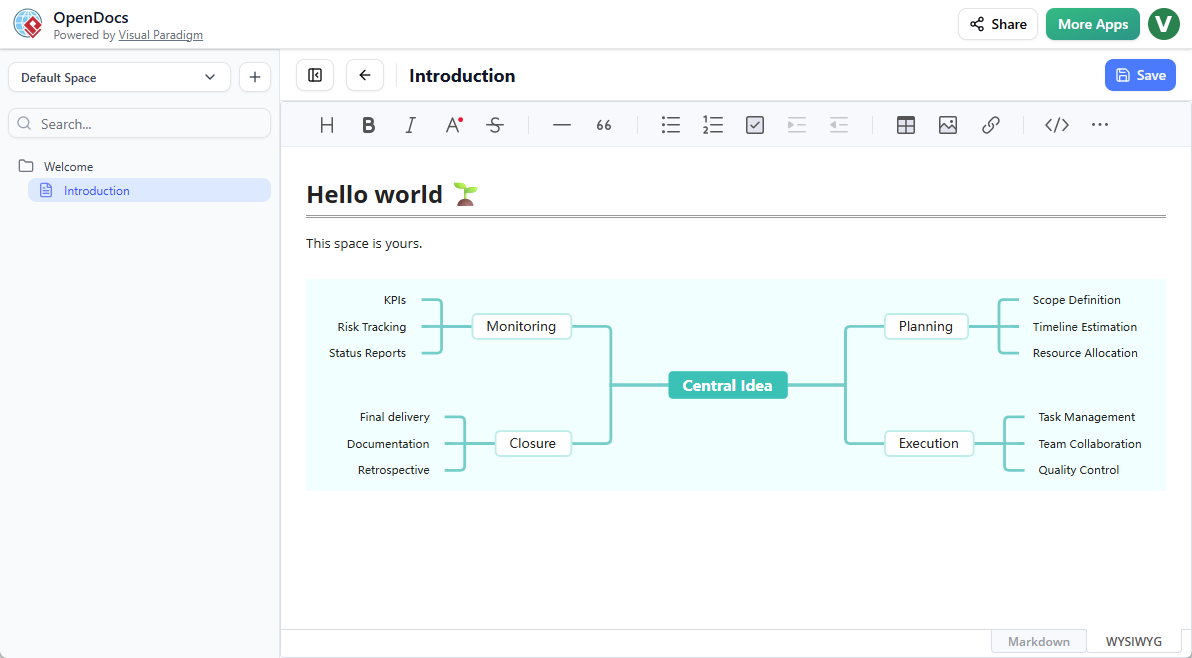
Integrated Diagramming: Unlike traditional editors that require external tools, OpenDocs includes a built-in diagram editor. Users can create professional visuals—such as UML diagrams, flowcharts, and mind maps—directly within their document pages.
-
Collaborative “Spaces”: Teams co-create within shared spaces, and entire knowledge bases can be published and shared with stakeholders via a single secure link.
AI-Powered Features and Examples
OpenDocs utilizes generative AI to simplify the creation of complex visual data. Below are specific tools and examples of their use:
1. AI-Powered Diagram Generation
This core feature removes the need for manual alignment and box-dragging.
-
How it works: Users type a natural language prompt, and the AI builds the entire structure instantly.
-
Example: Typing “Create a flowchart for our refund process” will automatically generate the sequence of steps and decision nodes.
2. AI Breakdown Structure Tool
Designed for deconstructing complex systems into manageable visual hierarchies.
-
Use Case: Creating a Work Breakdown Structure (WBS) for project management or a functional decomposition for system analysis.
-
Example: Describing a large construction project to the AI to instantly generate a hierarchical chart of tasks and sub-tasks.
3. AI Concept Map Tool
Synthesizes complex information into clear relationships that are not strictly hierarchical.
-
Use Case: Academic research, mapping business strategies, or competitive analysis.
-
Example: Visualizing multifaceted relationships and cross-links between different market competitors and their products.
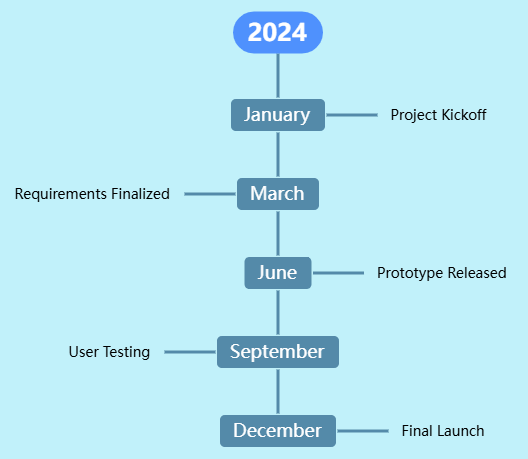
4. AI Timeline Tool
Tracks chronological sequences directly alongside technical manuals or project charters.
-
Use Case: Tracking project milestones, historical data, or product roadmaps.
-
Example: Generating a visual product roadmap to supplement a project status report in Markdown.
5. AI Content Assistant
A text-focused AI that helps bridge the gap between initial thoughts and finished documentation.
-
Functionality: Generates article drafts, summarizes long documents, or simplifies complex technical topics.
Step-by-Step Guide: Creating AI Visuals in OpenDocs
You can create AI-enhanced diagrams in two primary ways:
Option A: As Part of a Document Page
-
Open your page in the OpenDocs editor and click Edit.
-
Place your cursor where you want the visual to appear.
-
Click the Insert button on the bottom bar.
-
Navigate to Mind Maps and select the specific tool (e.g., Breakdown Structure, Concept Map, or Timeline).
-
Use the AI generator or the manual editor to build your visual, then click Save and Close.
Option B: As a Standalone Component Page
-
In the table of contents pane, click the + icon and select New Component Page.
-
Select the desired diagram type from the Mind Maps menu.
-
The editor will open in a full-screen view for high-definition modeling.
-
Click Save when finished to add it to your knowledge tree.
Licensing and Requirements
OpenDocs and its suite of AI diagramming tools are available for users with the following licenses:
-
Visual Paradigm Online: Combo or Deluxe Editions.
-
Visual Paradigm Desktop: Professional Edition.