
Now Reading: Generate UML Activity Diagrams Instantly with Visual Paradigm AI Chatbot
-
01
Generate UML Activity Diagrams Instantly with Visual Paradigm AI Chatbot


Generate UML Activity Diagrams Instantly with Visual Paradigm AI Chatbot
Creating UML activity diagrams can be time-consuming, especially when learning the notation or translating complex workflows into visual form. With Visual Paradigm AI Chatbot, you can generate accurate, professional-grade UML activity diagrams in seconds—just by describing your process in plain language.
Whether you’re a student learning software modeling, a developer documenting system behavior, or a business analyst mapping out a business process, this AI-powered assistant simplifies diagram creation without requiring deep UML expertise.
What Is a UML Activity Diagram?
A UML activity diagram visualizes the flow of control in a system or process. It shows how activities are connected, the sequence in which they occur, and the decision points that influence the path. These diagrams are commonly used to:
-
Model business workflows
-
Represent software execution sequences
-
Document system behavior
-
Identify bottlenecks or parallel processes
Traditional tools often require manual placement of nodes, connectors, and annotations. With Visual Paradigm AI Chatbot, you skip the setup and focus on the logic.
How to Generate a UML Activity Diagram Using AI
You don’t need to know UML syntax or navigate complex menus. The AI Chatbot interprets natural language and produces a structured diagram instantly.
Step 1: Open the AI Chatbot
Launch the Visual Paradigm AI Chatbot from your desktop or online environment. You’ll see a clean, conversational interface with a prompt box at the bottom.
Step 2: Describe Your Process
Type a clear, natural-language description of the workflow you want to visualize. For example:
“Create a UML activity diagram for a user logging into a web application, including steps like entering credentials, validating the password, checking account status, and redirecting to the dashboard.”
The AI will analyze your request and activate the UML Sequence & Activity Diagram Agent—a specialized model trained to generate correct UML constructs.
Step 3: Review the Generated Diagram
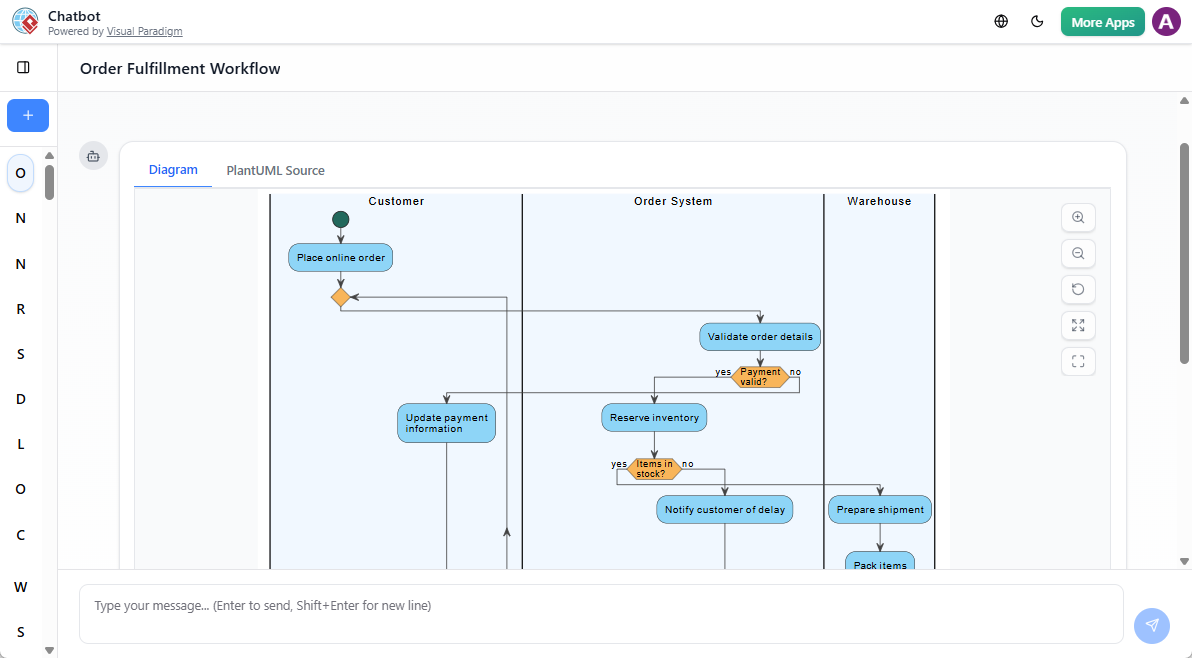
Within seconds, the chat interface displays a fully rendered UML activity diagram with:
-
Initial node (start point)
-
Action nodes (e.g., “Enter Username”, “Validate Password”)
-
Decision diamonds (e.g., “Is password correct?”)
-
Control flows (arrows showing sequence)
-
Final node (end point)
The diagram is interactive. You can scroll through it, zoom in, and see the structure clearly.
Step 4: Refine with Follow-Up Prompts
The real power lies in iteration. If the diagram needs adjustment, ask for changes directly:
-
“Add a step for password encryption before validation.”
-
“Show parallel processing for sending a login confirmation email.”
-
“Highlight the error path when the account is locked.”
Each request updates the diagram in real time, maintaining proper UML syntax and structure.
Example: Modeling a Customer Order Workflow
Let’s walk through a practical example.
Request:
“Generate a UML activity diagram for a customer placing an order on an e-commerce site, including payment processing, inventory check, and order confirmation.”
Result:
The AI produces a diagram with:
-
Start → Browse Products → Add to Cart → Proceed to Checkout → Enter Payment Info → Process Payment → Check Inventory → Confirm Order → Send Confirmation Email → End
Decision nodes appear for:
-
“Is payment successful?”
-
“Is inventory available?”
Parallel branches handle:
-
Sending confirmation email
-
Updating inventory system
You can then ask:
“Add a delay for inventory update and show it as a swimlane.”
The AI adapts the diagram accordingly, demonstrating how the chatbot supports both simple and advanced modeling.
Why This Approach Works Better for Learning & Work
✅ Learn UML by Doing, Not Memorizing
Instead of studying abstract rules, you apply them immediately. The AI ensures your diagram follows UML standards, helping you internalize best practices through real usage.
✅ Instant Feedback on Structure
If you accidentally describe a loop incorrectly, the AI will still generate a valid diagram—but you’ll notice inconsistencies. This prompts you to refine your description, reinforcing correct modeling logic.
✅ Focus on Logic, Not Tools
You’re not spending time learning how to drag shapes or adjust connectors. The emphasis stays on what the process is, not how to draw it.
✅ Build Confidence with Iterative Refinement
Each edit strengthens your understanding. Asking the AI to “add a retry mechanism if payment fails” introduces concepts like exception handling and retry logic—all within a real-world context.
Advanced Use Cases
🔄 Integrate with Visual Paradigm Desktop/Online
For users with a license, you can import the generated activity diagram directly into Visual Paradigm Desktop or Visual Paradigm Online. From there, you can:
-
Add more detailed elements (e.g., object flows, partitions)
-
Export to PDF, PNG, or SVG
-
Share with team members for review
-
Link to other UML diagrams (like sequence or component diagrams)
This seamless workflow supports both rapid prototyping and formal documentation.
🌐 Use in Academic and Professional Settings
-
Students can use the chatbot to verify their homework or experiment with different process flows.
-
Developers can quickly document a new feature’s logic before coding.
-
Analysts can map out business processes and share them with stakeholders without technical barriers.
Best Practices for Better Results
-
Be Specific About Flow and Decisions
Instead of “a user logs in,” say:“A user logs in, enters username and password, the system validates credentials, and if correct, checks if the account is locked. If locked, show an error message.”
-
Use Clear Action Verbs
“Process payment” is better than “do payment stuff.” -
Break Complex Workflows into Steps
Describe each action in sequence. The AI handles the rest. -
Use Suggested Prompts
After a diagram appears, the AI often suggests next steps like:-
“Add error handling for failed login attempts.”
-
“Show parallel processing for sending confirmation emails.”
These help deepen your understanding.
-
Limitations to Keep in Mind
-
The AI generates diagrams based on text input only. It cannot interpret ambiguous or overly vague descriptions.
-
For highly complex systems, manual refinement in Visual Paradigm may still be needed.
-
The chatbot is not a replacement for formal UML modeling tools but a powerful accelerator.
Final Thoughts
Generating UML activity diagrams with Visual Paradigm AI Chatbot isn’t about bypassing learning—it’s about making learning faster and more practical. You get immediate visual feedback, reduce friction in diagram creation, and focus on understanding the logic behind the process.
Whether you’re a beginner exploring UML for the first time or a professional streamlining documentation, the chatbot offers a low-effort, high-impact way to create accurate, standards-compliant diagrams—just by talking.
No coding. No syntax. No guesswork.
Just describe your workflow—and let the AI do the rest.
💡 Pro Tip: Try generating a diagram for a real-world process you’re familiar with—like a coffee shop’s order flow or a student’s course registration. Compare the result with your mental model. You’ll quickly see how the AI helps clarify and structure complex ideas.
