Introduction
As a general-purpose modeling language, UML provides a stable basis for a wide variety of requirements. However, it is not defined for specific application domains or technologies. In some circumstances, UML is too general, and using it involves considerable effort. In such cases, a language optimized for the given domain with special concepts is advantageous.
Profile diagrams, a type of structural diagram in UML, provide a generic extension mechanism for customizing UML models for particular domains and platforms. Extension mechanisms allow refining standard semantics in a strictly additive manner, preventing contradictions with standard semantics.
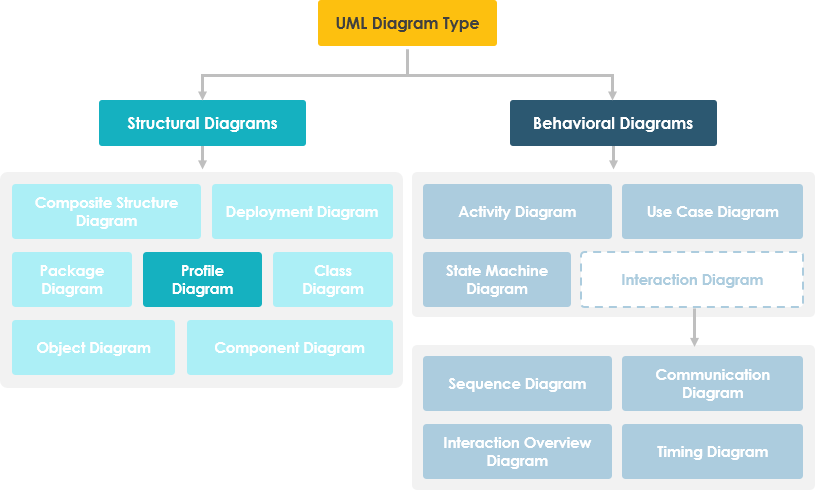
Profiles are defined using stereotypes, tagged value definitions, and constraints applied to specific model elements like Classes, Attributes, Operations, and Activities. A Profile is a collection of such extensions that collectively customize UML for a particular domain (e.g., aerospace, healthcare, financial) or platform (J2EE, .NET).
Basic Concepts of Profile Diagram
Profile diagrams serve as an extensibility mechanism that allows you to extend and customize UML by:
- Adding new building blocks
- Creating new properties
- Specifying new semantics to make the language suitable for your specific problem domain
Profile diagrams have three types of extensibility mechanisms:
1. Stereotypes
Stereotypes allow you to increase the vocabulary of UML. You can create new model elements derived from existing ones but with specific properties suitable to your problem domain. Stereotypes introduce new building blocks that speak the language of your domain and appear as primitives, allowing you to introduce new graphical symbols.
Example: When modeling a network, you might need symbols for <<router>>, <<switches>>, <<hub>>, etc. A stereotype allows you to make these appear as primitives.

2. Tagged Values
Tagged values extend the properties of UML, allowing you to add additional information to the specification of a model element. They enable you to specify keyword-value pairs where keywords are the attributes. Tagged values are graphically rendered as strings enclosed in brackets.
Example: Consider a release team responsible for assembling, testing, and deploying a system. It’s necessary to track the version and test results of the main subsystem. Tagged values add such information.
Tagged values are useful for:
- Code generation
- Version control
- Configuration management
- Authorship
- And other purposes

3. Constraints
Constraints specify semantics or conditions that must be held true at all times. They extend the semantics of UML building blocks by adding new protocols. Graphically, a constraint is rendered as a string enclosed in brackets placed near the associated element.
Example: In developing a real-time system, it’s necessary to adorn the model with information such as response time. A constraint defines a relationship between model elements that must use {subset} or {xor}. Constraints can be applied to attributes, derived attributes, and associations, and can be attached to one or more model elements shown as a note.

When to Use Profile Diagrams – UML Extension Mechanism
As an alternative to creating a new metamodel, you can extend and modify the UML metamodel according to your requirements. In UML, these are called lightweight extensions based on stereotypes and profiles. UML Profiles can be defined in one of the following three ways:
- Creation of a new metamodel
- Extension and modification of the UML metamodel
- Extension of the UML metamodel with language-inherent mechanisms
How Profile Diagrams Work
The extension mechanism in UML 1.1 was relatively imprecise, as extensions could only be made based on the primitive data type string. UML 2.0 allows you to use arbitrary data structures for extended elements, enabling more extensive and precise model extensions.
Important: The profile mechanism is not a first-class extension mechanism. It does NOT allow you to:
- Modify existing metamodels
- Create a new metamodel like MOF does
Profile only allows adaptation or customization of an existing metamodel. In UML 2.0 or above, profiles can be dynamically combined so that several profiles can be applied simultaneously to the same model.

Profile Diagram at a Glance
In a profile diagram, a stereotype can extend from one or more metaclasses. This extension relationship is depicted as an arrow with a continuous line and filled arrowhead, pointing away from the stereotype to the metaclass.
In the example below, we define a profile of EJB as a package. The bean itself is extended from the component metamodel as an abstract bean. The abstract bean can be concretized as either an Entity Bean or Session Bean. An EJB has two types of interfaces: remote and home. An EJB also contains a special kind of artifact called a JAR file for storing a collection of Java code.

Textual vs Graphic Icon Stereotype
Stereotypes can be represented in textual or graphical form. The icon can also replace the normal class box.
Example: People often use these three stereotyped class representations to model the software MVC (Model-View-Controller) framework:

Other Popular Usages for UML Profiles
Every technical target—programming language, middleware, library, or database—is a natural candidate for defining a UML profile. Examples include:
- CORBA
- EJB (Enterprise JavaBeans)
- C++ or Java
- Oracle or MySQL
- And many others
Applying Stereotypes of a Profile
To use stereotypes in a specific application, you must first integrate the profile that contains the stereotypes. This is done with a dashed arrow with an open arrowhead pointing away from the package of the application towards the profile. This arrow is labeled with the keyword <<apply>>.
Profile Diagram Example I – IT Management
A profile is applied to another package to make the stereotypes in the profile available to that package. The illustration below shows the Network, Telecomms, and Software profiles being applied to the ITManagement package.

Profile Diagram Example II – EJB Application
In this example, we define a profile of EJB as a package. The bean itself is extended from the component metamodel as an abstract bean. The abstract bean can be concretized as either an Entity Bean or Session Bean. An EJB has two types of interfaces: remote and home. An EJB also contains a special kind of artifact called a JAR file for storing a collection of Java code.

Accelerate Your Modeling with AI Profile Diagram Generator
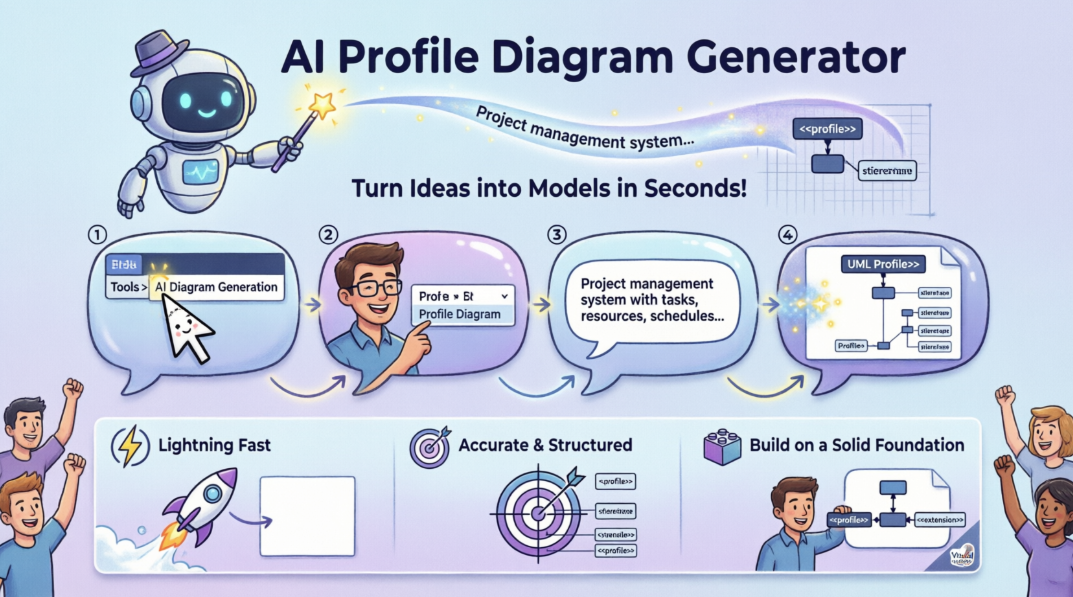
March 25, 2026 – Visual Paradigm has introduced a major update with advanced generative capabilities integrated directly into the modeling environment. You can now use the AI UML generator to create Profile Diagrams in seconds, streamlining the way you define domain-specific customizations and constraints for your UML models.
This new AI UML tool bridges the gap between conceptual design and formal modeling. By leveraging the AI diagram generator, you can transform a simple text description into a structured diagram, allowing you to focus on high-level architecture rather than manual shape placement.
How to Generate Profile Diagrams with AI
The process is seamlessly integrated into your existing workflow. Follow these steps:
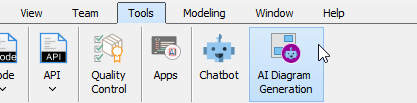
- Navigate to the top menu and select Tools > AI Diagram Generation. This opens the AI Diagram Generation dialog box.
- Select Profile Diagram as your desired diagram type from the available options.
- Enter your specific topic or requirements in the prompt field. For example:
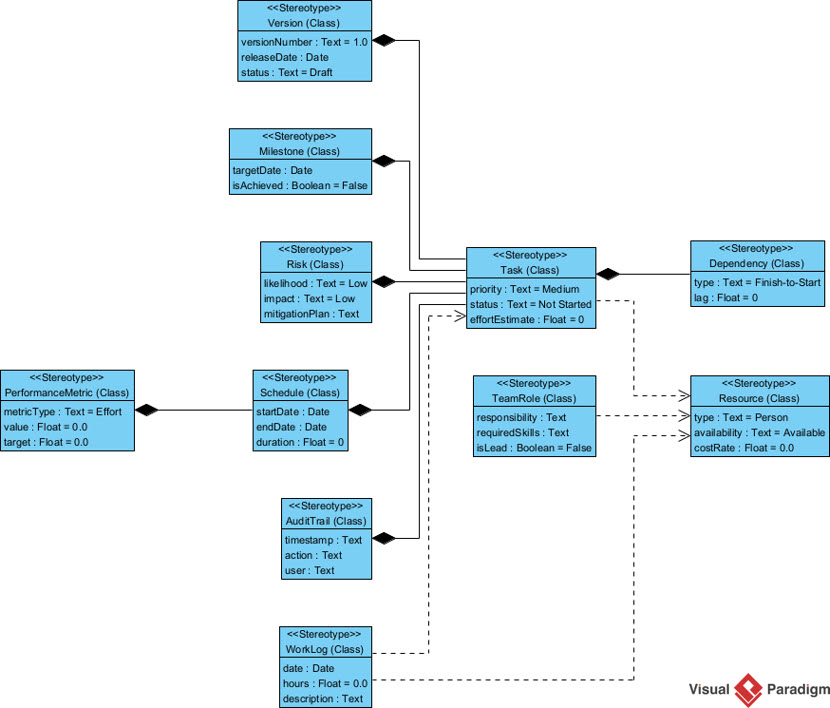
“Generate a Profile Diagram for a project management system specifying extensions for tasks, resources, schedules, and team roles.”
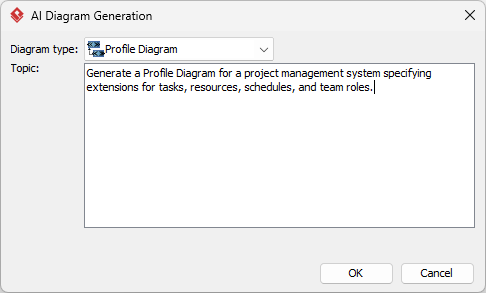
- Click OK to process the request.
Once the AI diagram generator completes the task, the resulting diagram appears on your canvas. You have full flexibility to revise elements, refine stereotypes, and continue modeling using Visual Paradigm’s comprehensive suite of tools.
Why Use an AI UML Generator?
Speed and accuracy are critical in modern software development. Using an AI UML tool helps eliminate the “blank page” problem. Whether you’re defining a new framework or extending UML for a specific industry, the AI Profile Diagram generator provides a solid foundation that you can iterate upon immediately.
AI Profile Diagram Features
Prompt-Based Generation
You can input requirements like:
“Create a UML profile for automotive software with stereotypes for ECU and sensor components”
to receive a professional starting point.
Customization
The AI automatically defines:
- Custom stereotypes
- Tagged values (e.g., hardware interfaces, power consumption)
- Constraints based on your prompt
Integration
These diagrams can be:
- Embedded as interactive components directly into OpenDocs pages for documentation
- Used within the desktop application for advanced modeling
Broad AI Support in Visual Paradigm
Beyond profile diagrams, Visual Paradigm offers a comprehensive AI Diagramming ecosystem that supports over 13 diagram types:
UML Modeling
- Class Diagrams
- Sequence Diagrams
- Use Case Diagrams
- Activity Diagrams
- State Machine Diagrams
- Component Diagrams
- Deployment Diagrams
- Composite Structure Diagrams
Enterprise & Strategy
- ArchiMate
- BPMN (Business Process Model and Notation)
- SWOT Analysis
- PESTLE Analysis
- Business Canvases
Software & Data
- C4 Model diagrams
- Entity-Relationship Diagrams (ERD)
- Data Flow Diagrams (DFD)
Cloud Architecture
The AI Cloud Architecture Studio helps design AWS and Azure infrastructures based on project requirements.
Textual Analysis
A core capability that derives model elements directly from unstructured requirements documents or user stories.
How to Access AI Features
AI features are integrated into both:
- Visual Paradigm Desktop (Professional Edition)
- Visual Paradigm Online (Combo Edition)
You can typically access these tools by navigating to Tools > AI Diagram Generation in the desktop environment.
Getting Started
Ready to experience the future of modeling? Explore the full capabilities of this feature and start creating professional UML Profile Diagrams in seconds.
Experience the power of automated modeling today. Download the latest version of Visual Paradigm and try the AI UML generator for yourself.
- References
- AI Profile Diagram Generation with OpenDocs UML Support: Learn about the integration of AI-powered profile diagram generation with OpenDocs for enhanced documentation capabilities.
- AI Profile Diagram Generator – UML Tool Update: Discover the new AI-powered profile diagram generation feature in Visual Paradigm Desktop that creates diagrams from text prompts.
- Revolutionizing Domain-Specific Modeling: AI-Powered UML Profile Diagram Generation in OpenDocs: Explore how AI is transforming domain-specific modeling with automated profile diagram creation.
- Visual Paradigm – Comprehensive Modeling Platform: Visual Paradigm is a platform for visual modeling with support for UML, ArchiMate, BPMN, ERD, DFD, SWOT, PESTLE, and Business Canvases.
- AI Diagram Generator Now Supports 13 Diagram Types: Visual Paradigm’s AI Diagram Generator now supports 13 diagram types, allowing you to instantly generate complex models from text prompts.
- Comprehensive Guide to Visual Paradigm’s AI-Powered UML and Modeling Ecosystem 2025-2026: A detailed guide covering all AI-powered features and diagram types available in Visual Paradigm.
- AI AWS Architecture Diagram Generator: Learn how to use AI to generate AWS architecture diagrams and ensure your cloud designs are never isolated.
- Unleashing the Power of Visual Paradigm Community Edition: Discover comprehensive UML support including class diagrams, sequence diagrams, and more in the free Community Edition.
- AI Diagram Generator – 13 Diagram Types Support: Detailed overview of the expanded AI diagram generation capabilities across multiple diagram types.
- AI Composite Structure Diagram Generator: Generate complex composite structure diagrams automatically using AI-powered tools.
- AI Component Diagram Generator Update: Enhanced AI capabilities for generating component diagrams from natural language descriptions.
- Enhanced AI ArchiMate Diagram Generation Quality: Improved AI-powered ArchiMate diagram generation with better quality and accuracy.
- AI Diagram Generator – New Types: DFD & ERD: New support for Data Flow Diagrams and Entity-Relationship Diagrams in the AI generator.
- AI Cloud Architecture Studio Launch: Introduction of the AI Cloud Architecture Studio for designing AWS and Azure infrastructures.
- AI Cloud Architecture Studio – Video Tutorial: Video guide on using Visual Paradigm’s AI Cloud Architecture Studio for cloud designs and exporting reports.
- Enhance Design Thinking – New AI Diagram Generation: New AI diagram generation features to enhance design thinking and modeling workflows.
- Click Start AI – Technical Support: Visual Paradigm Desktop has officially introduced AI-powered features, making modeling smarter and more efficient than ever before.