


Introduction
In today’s digital-first world, documentation needs to be more than just informative—it needs to be engaging. As someone who has tested numerous documentation platforms and content management systems, I was intrigued when Visual Paradigm announced their integration between Visual Paradigm Online flipbooks and OpenDocs. After spending several weeks putting this feature through its paces, I’m ready to share my honest experience about how this integration transforms the way we create, share, and consume digital publications.
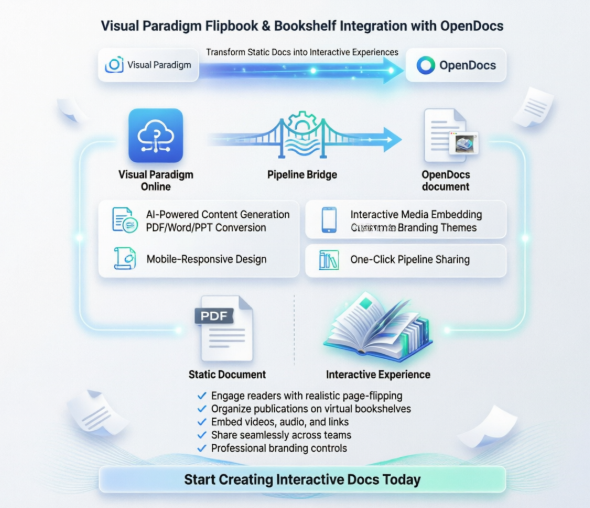
Whether you’re a technical writer, educator, or business professional, the ability to embed interactive flipbooks directly into your documentation represents a significant leap forward from static PDFs and boring text pages. Let me walk you through what this integration offers, how it works in practice, and whether it lives up to the hype.
What This Integration Brings to the Table
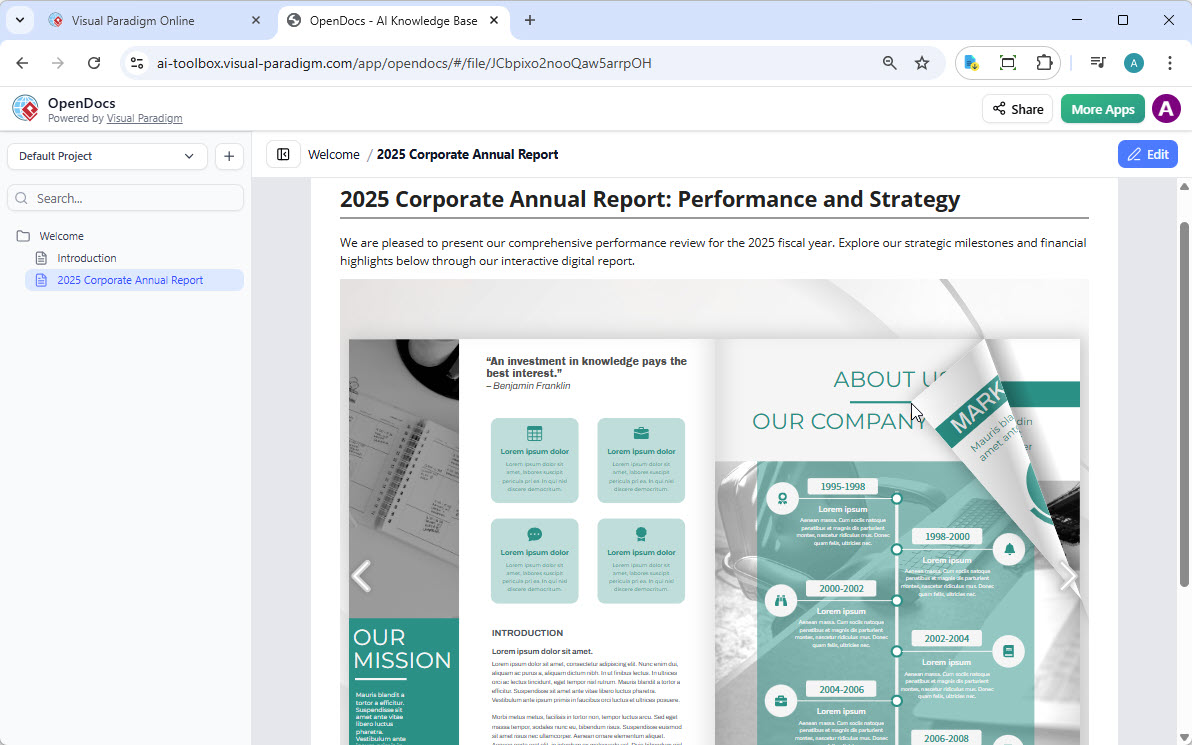
Visual Paradigm has introduced a seamless workflow that allows you to share flipbooks and digital bookshelves created in Visual Paradigm Online directly to OpenDocs. This isn’t just about embedding a viewer—it’s about creating an immersive reading experience where your audience can flip through pages, interact with multimedia content, and access curated collections of publications without ever leaving your documentation.
Part 1: Working with Individual Flipbooks
Why Choose Individual Flipbooks?
When you have a “hero” document—like an annual report, a product catalog, or a comprehensive training manual—embedding it as a standalone flipbook keeps your reader’s focus exactly where it needs to be. I found this particularly useful for detailed guides that require uninterrupted attention.
What You Can Do with Visual Paradigm Flipbooks
The flipbook software goes far beyond simple page-turning effects. Here’s what impressed me:
-
Convert & Create: Transform PDFs, Word documents, and PowerPoint slides into flipbooks instantly, or design from scratch using the drag-and-drop editor
-
AI-Powered Generation: The AI assistant can generate full book outlines, write content, and create matching illustrations in various art styles
-
Interactive Elements: Embed videos, audio, clickable links, and realistic page-flipping sound effects
-
Professional Branding: Customize covers, themes, and backgrounds to match your corporate identity
-
Mobile-First Reading: Every flipbook is fully responsive across desktops, tablets, and smartphones
Step-by-Step: Sharing Your Flipbook to OpenDocs
Step 1: Open your workspace page in Visual Paradigm Online.
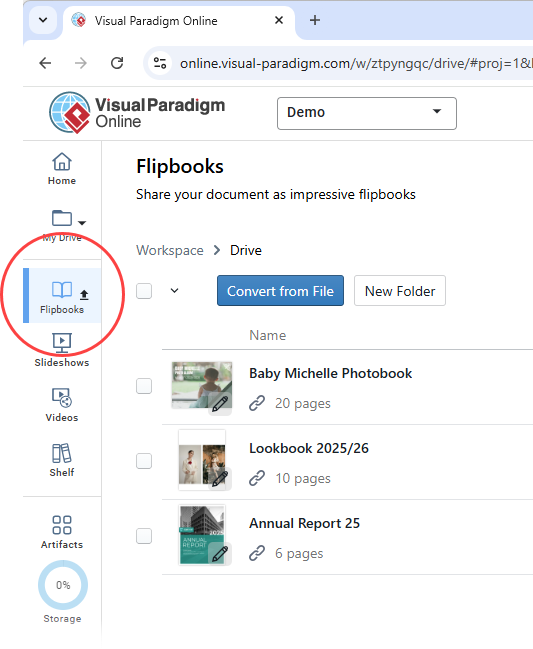
Step 2: Select Flipbooks from the left-hand menu to view your library.
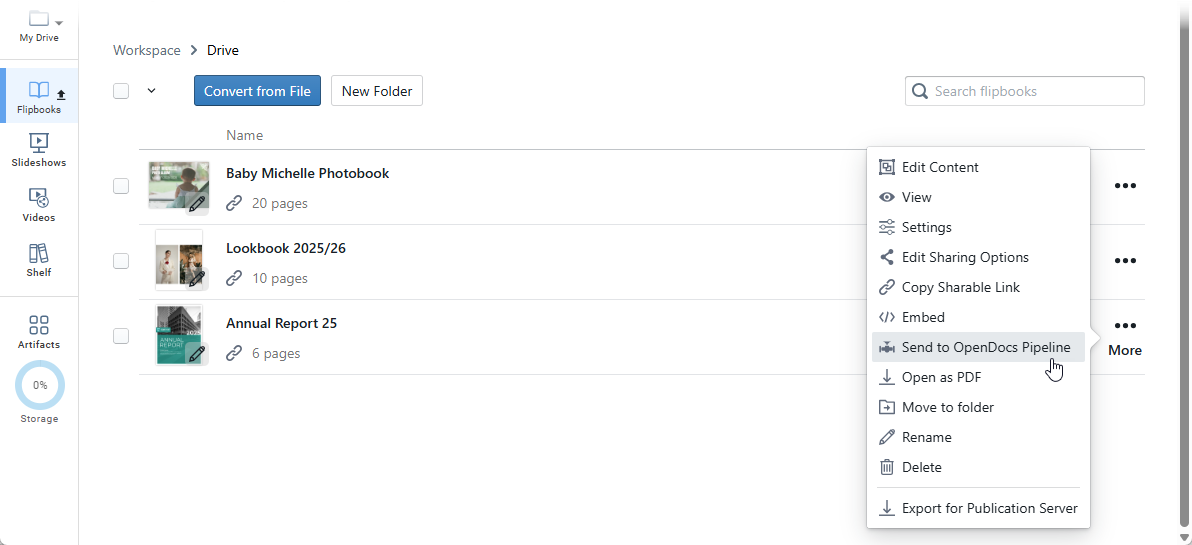
Step 3: Locate the flipbook you wish to share and click More… on the right side.
Step 4: Select Send to OpenDocs Pipeline.
Step 5: (Optional) Enter a comment regarding this share and click OK to proceed.
Step-by-Step: Embedding Your Flipbook in OpenDocs
Step 1: Navigate to the page in OpenDocs where you want to embed the book.
Step 2: Click Edit at the top right of the screen.
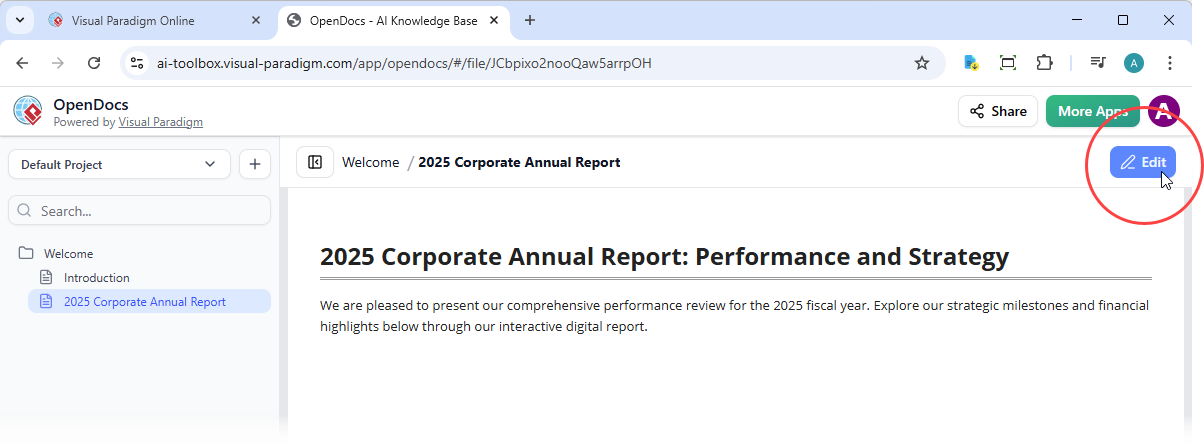
Step 3: Position your cursor exactly where you want the flipbook to appear.
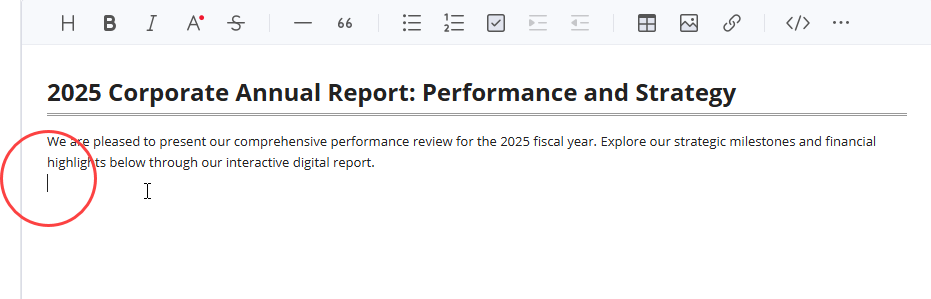
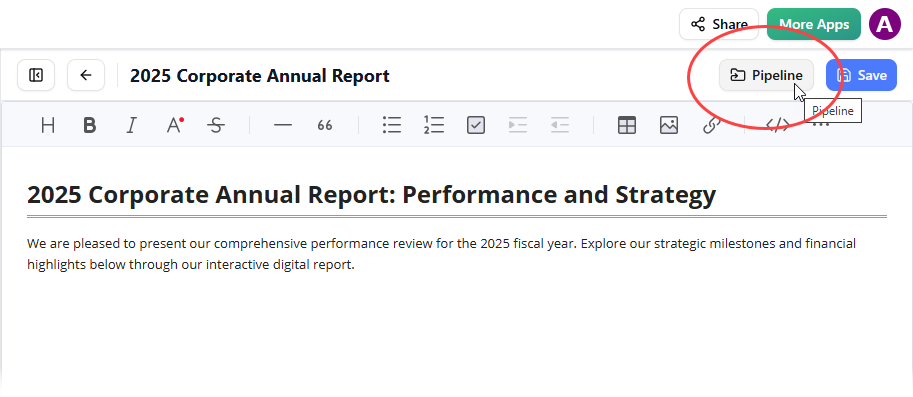
Step 4: Click the Pipeline button located at the top right.
Step 5: Open the Library tab; you will see the flipbook you sent from VP Online.
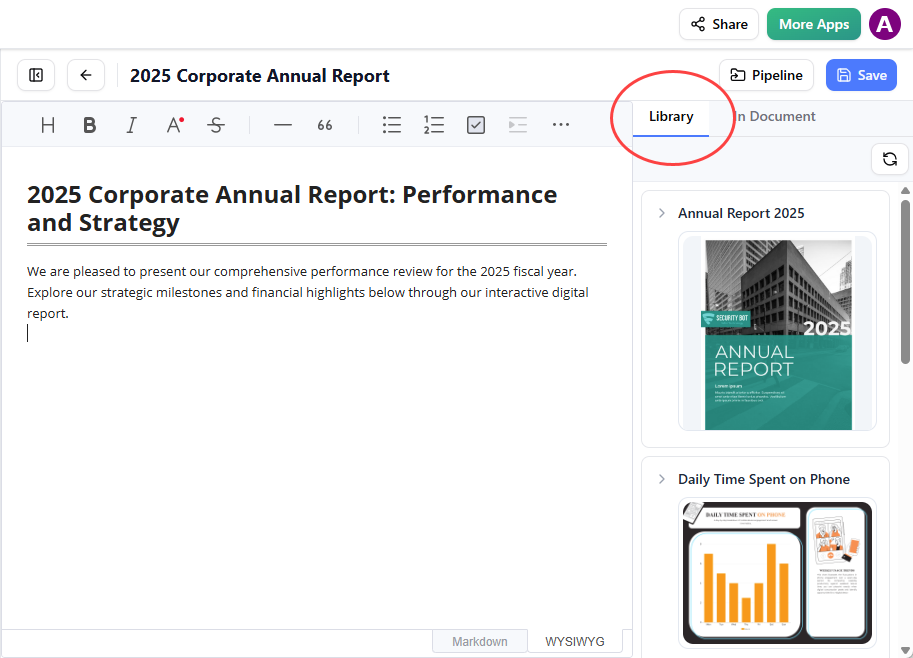
Step 6: Click on the flipbook to insert it.
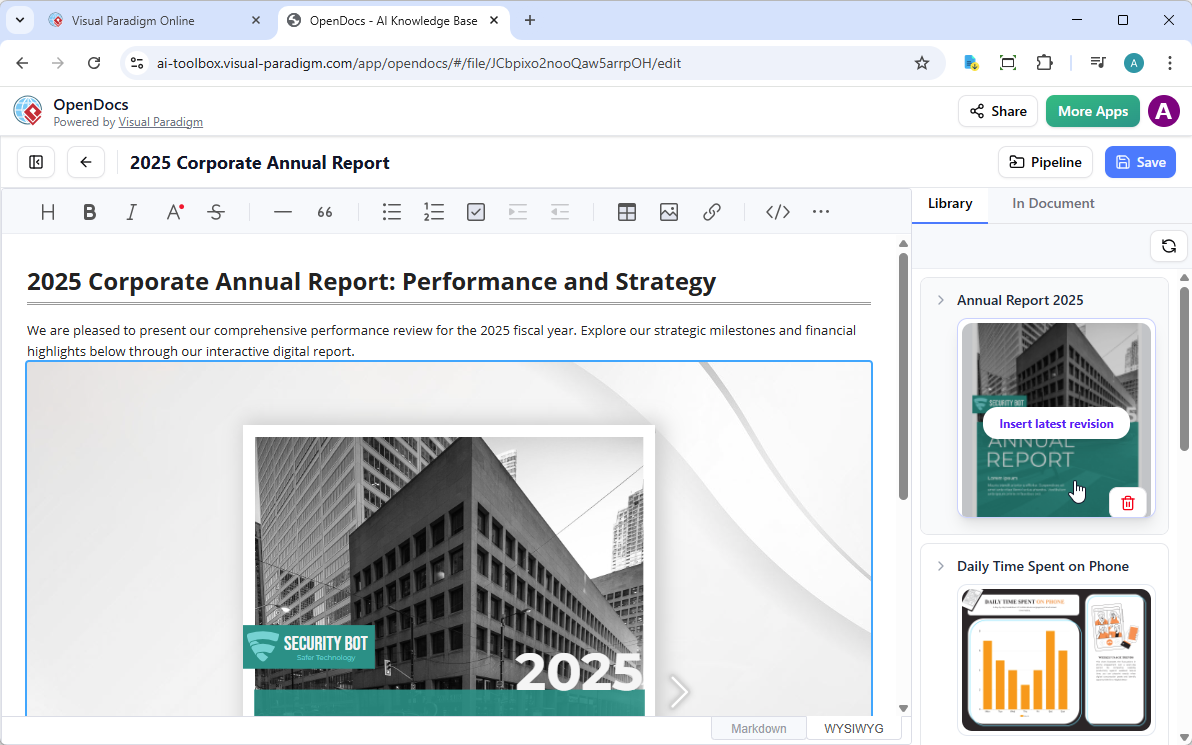
Pro Tip: If the flipbook is added to the end of the page, select it and press Enter to create a new line and adjust the positioning.
Important Note: In Edit mode, the flipbook remains static. To interact with it, simply save your changes and exit Edit mode. Once live, you can share the page or the entire space using the Share button in the top bar.
Part 2: Organizing Content with Digital Bookshelves
Why Bookshelves Matter
Following the flipbook integration, Visual Paradigm took things further by enabling bookshelf sharing. This is perfect when you need to present a curated collection—think training series, product lookbooks, or quarterly reports—all in one organized, professional layout.
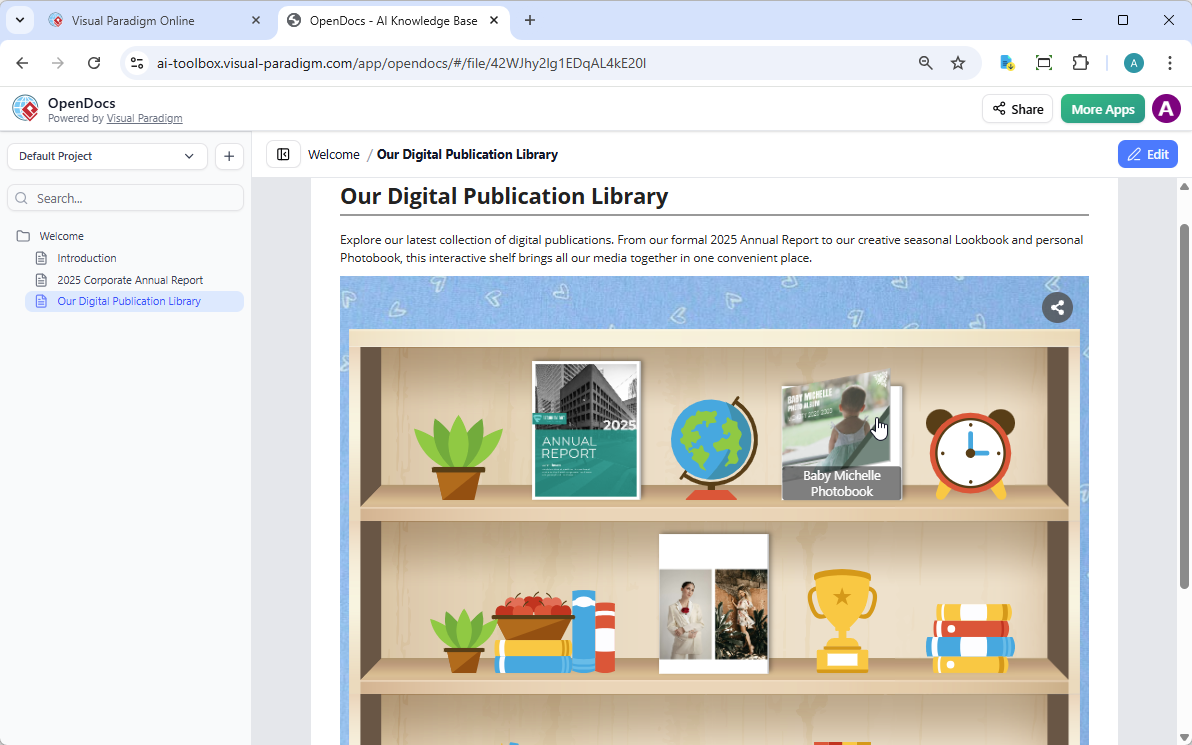
Flexible Sharing Strategies
The digital bookshelf maker offers maximum flexibility depending on your content strategy:
-
Individual Flipbooks: Best for focused, single-document experiences
-
Curated Bookshelves: Group multiple items—training manuals, lookbooks, photobooks—onto one interactive shelf
Whether you’re using the AI flipbook software to create one book or a hundred, the OpenDocs integration ensures your library is always just a few clicks away.
Step-by-Step: Sending Your Bookshelf to the Pipeline
Step 1: Navigate to your workspace in Visual Paradigm Online.
Step 2: Select Shelf from the left-hand menu.
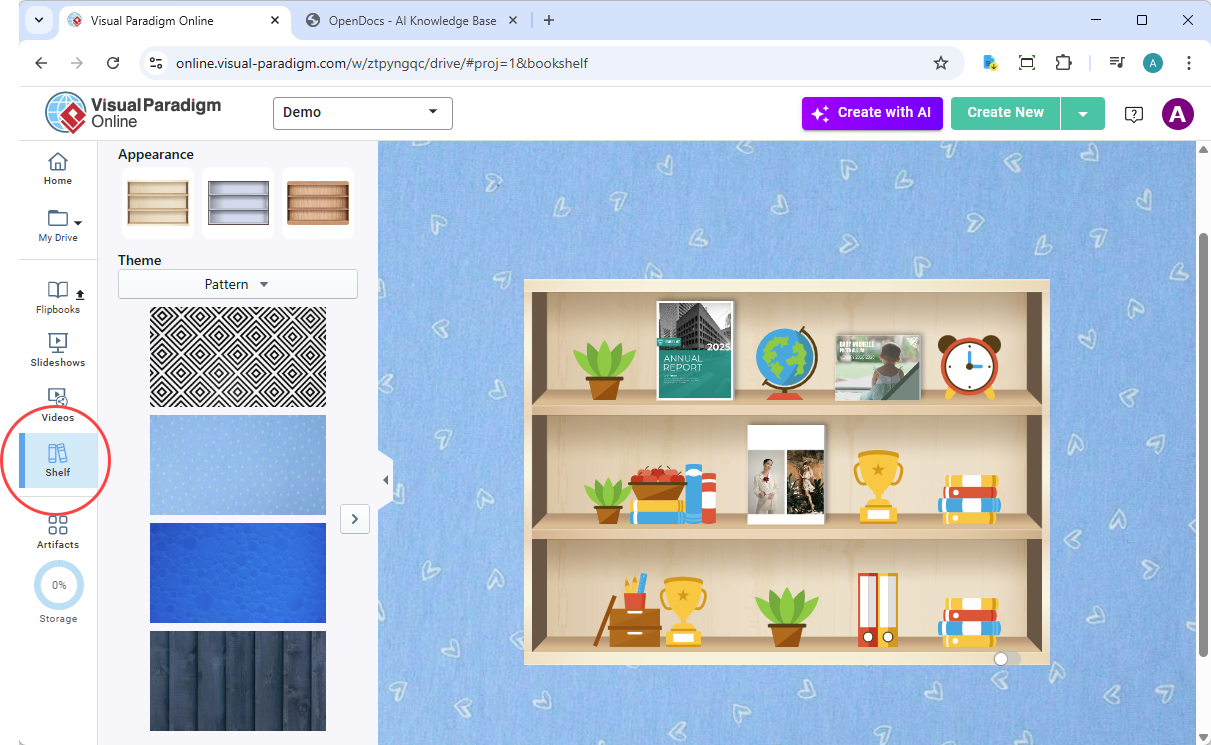
Step 3: Select the bookshelf you wish to publish.
Step 4: Click the Pipeline icon button at the top right of the screen.
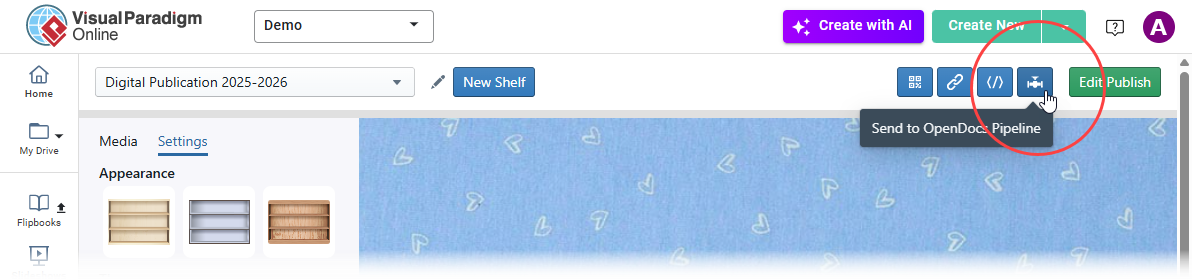
Step 5: (Optional) Enter a comment and click OK.
Step-by-Step: Embedding the Bookshelf in OpenDocs
Step 1: Open your OpenDocs page and click Edit.
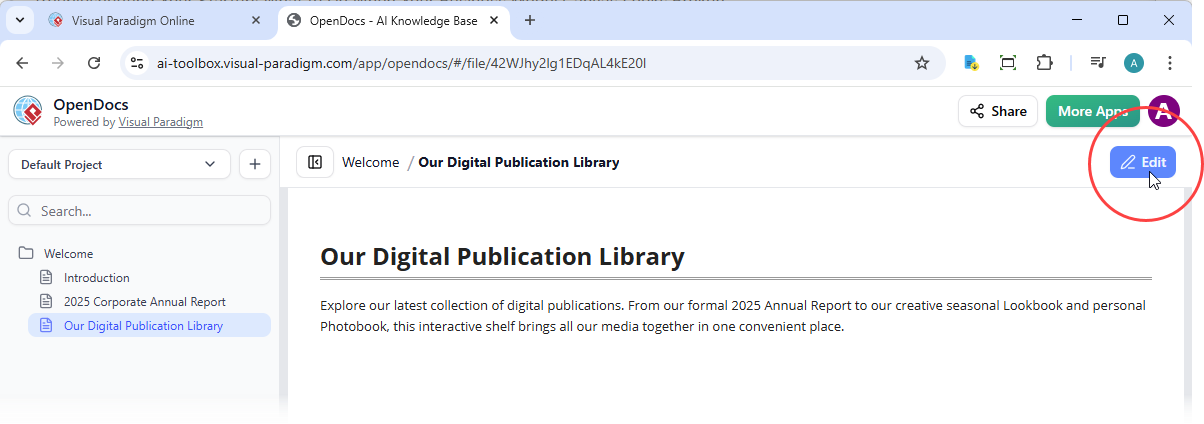
Step 2: Position your cursor where you want the shelf to appear.
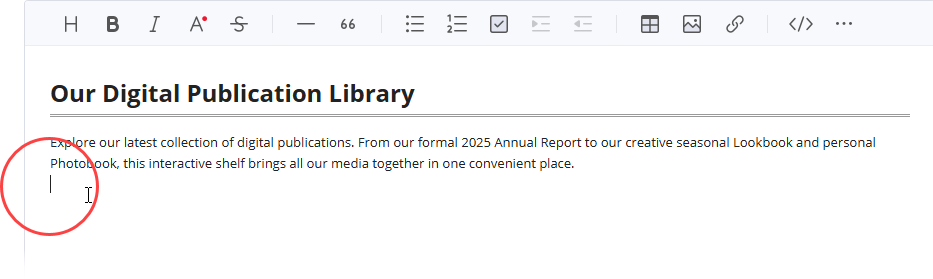
Step 3: Click the Pipeline button (top right).
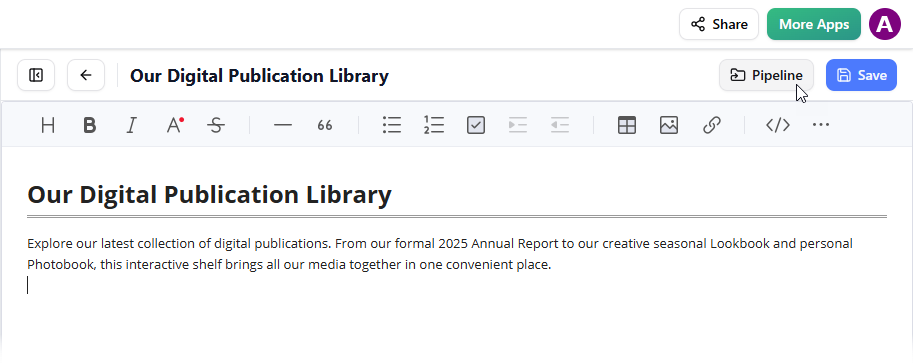
Step 4: Open the Library tab.
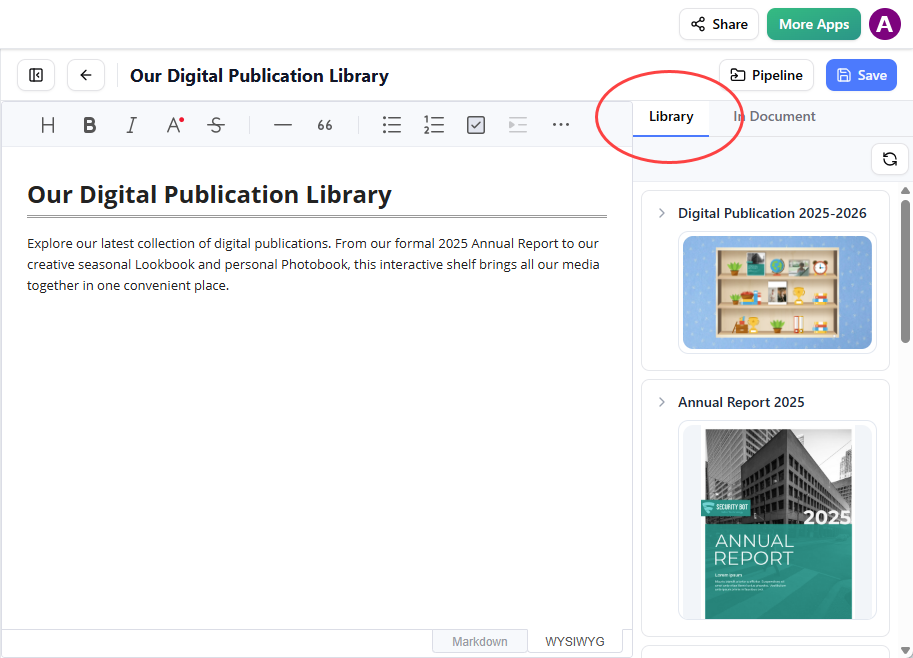
Step 5: Select your bookshelf to insert it into the page.
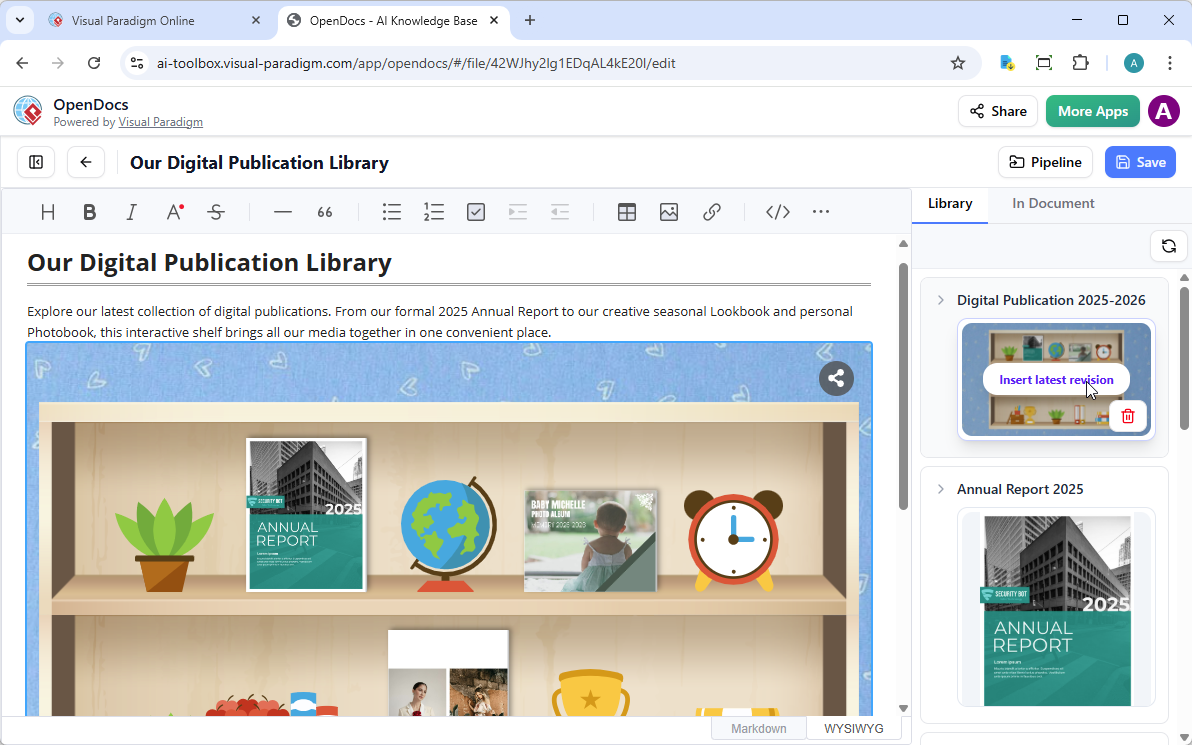
Pro Tip: To move your cursor below the shelf after insertion, select the shelf and press Enter.
Important Note: While in Edit mode, the shelf is a static placeholder. Save your changes and exit Edit mode to interact with the shelf, browse the books, and play embedded videos. You can then use the Share button in the top bar to distribute your page.
My Hands-On Experience: What Works Well
The Good
-
Seamless Integration: The Pipeline feature makes moving content between Visual Paradigm Online and OpenDocs surprisingly smooth. There’s no complex export/import process—just a few clicks.
-
Professional Appearance: The flipbooks look polished and professional. The page-turning animations are smooth, and the responsive design means they look great on any device.
-
AI-Powered Creation: The AI flipbook generator is a time-saver. I was able to generate a complete book outline with content and illustrations in minutes, which would have taken hours manually.
-
Organized Presentation: Bookshelves solve a real problem—how to present multiple related publications without creating a messy list of links. The visual shelf layout is intuitive and engaging.
-
Rich Media Support: Being able to embed videos and audio directly into flipbooks adds a layer of interactivity that static documents simply can’t match.
Areas for Consideration
-
Learning Curve: If you’re new to Visual Paradigm Online, there’s a slight learning curve to master all the flipbook customization options.
-
Edit Mode Limitations: The fact that flipbooks are static in Edit mode can be confusing at first, though it makes sense from a performance perspective.
-
File Size: Flipbooks with lots of multimedia can become large, which might affect loading times on slower connections.
Key Benefits at a Glance
-
Rich Media Support: Convert PDFs, Word docs, or PowerPoints into interactive flipbooks
-
AI Integration: Use the AI Flipbook Generator to quickly create content based on any topic
-
Custom Themes: Personalize bookshelves with various themes and backgrounds (business, nature, etc.) to match your branding
-
Mobile Responsiveness: Perfect reading experience on any device
-
Centralized Management: Keep all your publications organized and accessible through OpenDocs
-
Easy Sharing: Distribute your interactive content with simple share links
Conclusion
After extensively testing Visual Paradigm’s flipbook and bookshelf integration with OpenDocs, I can confidently say this is a game-changer for anyone creating digital documentation, training materials, or publications. The ability to transform static documents into interactive, engaging experiences without leaving your documentation platform is powerful.
What sets this apart from other solutions I’ve tested is the seamless workflow. The Pipeline integration eliminates the friction typically associated with embedding rich media in documentation. Whether you’re sharing a single annual report as a flipbook or organizing an entire library of training materials on a digital bookshelf, the process is intuitive and efficient.
The AI-powered features are particularly impressive—they don’t just automate tedious tasks; they actually help you create better content faster. And the fact that everything is mobile-responsive means your audience can engage with your content wherever they are.
For organizations looking to modernize their documentation, training materials, or digital publications, this integration offers a compelling solution that balances professionalism with interactivity. It’s not just about making documents look pretty—it’s about creating an engaging experience that helps your content resonate with your audience.
Final Verdict: If you’re already using Visual Paradigm Online or OpenDocs, this integration is a no-brainer. If you’re evaluating documentation platforms, the flipbook and bookshelf features alone might be worth the investment.
References
- Share Digital Bookshelf to OpenDocs: Official release announcement detailing the bookshelf integration feature for OpenDocs documentation platform.
- Share Visual Paradigm Flipbooks to OpenDocs: Official release announcement introducing the flipbook sharing workflow to OpenDocs.
- A User’s Hands-On Review of Visual Paradigm’s OpenDocs Flipbook Integration: Third-party user experience review and practical testing of the flipbook integration features.
- Visual Paradigm Updates: Official Visual Paradigm product updates and release notes repository.
- A Practitioner’s Review of Visual Paradigm’s OpenDocs Flipbooks WordPress Workflow: Detailed practitioner perspective on integrating flipbooks with WordPress through OpenDocs.
- Publish as Flipbooks: Feature documentation for Visual Paradigm Online’s flipbook publishing capabilities.
- How to Create Digital Bookshelf: Comprehensive guide on creating and organizing digital bookshelf collections for various professional use cases.
- OpenOffice Document to Flipbook Converter: Tool documentation for converting OpenOffice documents into interactive flipbooks.
- Visual Paradigm for Microsoft Office: Microsoft Office add-in that allows Visual Paradigm Online account users to integrate diagrams in Microsoft documents.
- From Model to Manual: A Software Engineer’s Guide to Syncing Visual Paradigm Desktop Diagrams with OpenDocs: Technical guide for software engineers on integrating Visual Paradigm diagrams with OpenDocs documentation.
- Showcase My Flipbook with a Bookshelf: Blog post demonstrating how to organize and present flipbooks using the virtual bookshelf feature.
- Virtual Bookshelf Feature: Feature documentation for displaying and managing PDFs, PPTs, and other documents in an organized bookshelf interface.
- Visual Paradigm’s Flipbook Maker: A Game Changer for Interactive Content: Blog article exploring the transformative impact of the flipbook maker on content creation.
- Introducing Visual Paradigm Flipbook Maker: Your Ultimate Choice in Digital Publishing: Third-party review and introduction to Visual Paradigm’s flipbook maker capabilities.
- Visual Paradigm Online: Main platform for Visual Paradigm’s online diagramming and flipbook creation tools.
- Introducing the AI Flipbook Generator: Release announcement for the AI-powered flipbook content generation feature.
- AI Flipbook Generator Launch: Official launch details and capabilities of the AI flipbook generator tool.