


Introduction: Why This Guide Exists (From One Modeler to Another)
Hey there, fellow process enthusiast! 👋 If you’ve ever stared at a blank Business Process Diagram wondering how to cleanly separate responsibilities between departments, external partners, or system roles—you’re not alone. I’ve been modeling workflows for over five years, and BPMN pools and lanes were initially one of those “seems simple, but wait, how do I actually use this?” concepts for me.
After countless iterations, client workshops, and yes—a few frustrating moments where I couldn’t figure out why my pool wouldn’t resize—I decided to document everything I’ve learned about BPMN pools and lanes using Visual Paradigm. This isn’t official documentation. This is real-world, tried-and-tested insights from someone who’s been in your shoes. Whether you’re prepping for a certification, onboarding a new team, or just refining your modeling skills, I hope this guide saves you time and sparks that “aha!” moment. Let’s dive in!
Understanding the Basics: What Pools and Lanes Really Mean in Practice
When I first started with BPMN, I treated pools and lanes like decorative boxes. Big mistake. Here’s how I finally “got it”:
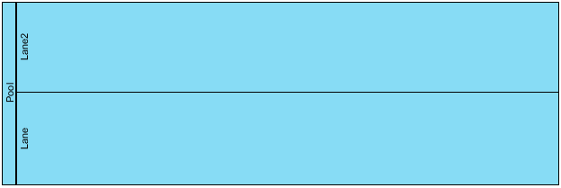
A BPMN pool represents a participant in your process—think of it as a company, a system, or an external vendor. Visually, it’s that big rectangular container holding your tasks, gateways, and events.
A BPMN lane is a subdivision inside a pool, used to show internal roles, teams, or departments. For example, within a “Customer Service” pool, you might have lanes for “Tier 1 Support,” “Billing Team,” and “Escalations.”
 |
|---|
| Horizontal pool that contains two lanes |
💡 Pro Tip from My Experience: I always start by sketching pools first to map external interactions, then add lanes to clarify internal handoffs. It keeps my diagrams scannable for stakeholders who aren’t BPMN experts.
Flipping the Script: Changing Pool Orientation (And Why It Matters)
Early on, I built everything horizontally. Then a client requested a vertical layout for a mobile-friendly view. That’s when I learned about orientation toggles!
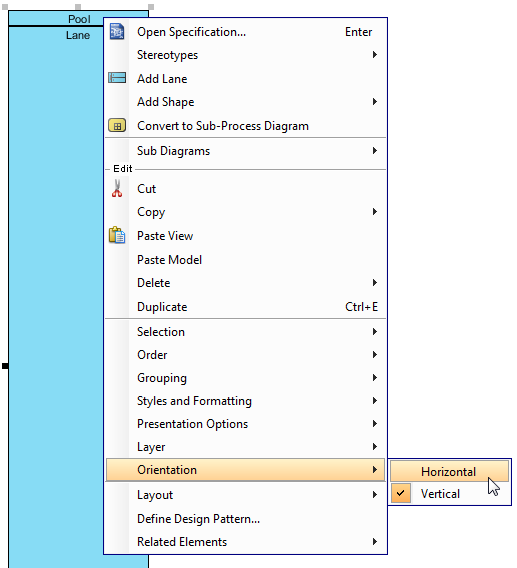
In Visual Paradigm, you can switch pools (and their lanes) between horizontal and vertical layouts. Here’s how I do it:
-
Right-click the pool header (make sure it’s empty first—more on that below!)
-
Navigate to Orientation > Vertical/Horizontal
 |
|---|
| Changing the orientation of pool from vertical to horizontal |
| NOTE: | You can only change the orientation of pool/lane when it contains no flow object |
|---|
🔧 My Workflow Hack: I prototype diagrams in horizontal mode for brainstorming (easier to add tasks left-to-right), then switch to vertical for final presentations if the process has many sequential steps. Saves so much rework!
The Power of the “Black Box”: When Less Detail Is More
Not every participant needs their internal workflow exposed. Early in my career, I over-modeled external systems, cluttering diagrams. Then I discovered black box pools.
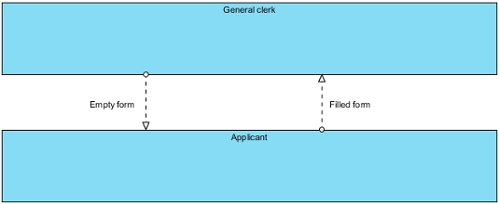
A black box pool is an empty container representing a participant whose internal process is hidden or out of scope. Perfect for:
-
Third-party vendors
-
Legacy systems
-
High-level executive views
To create one:
-
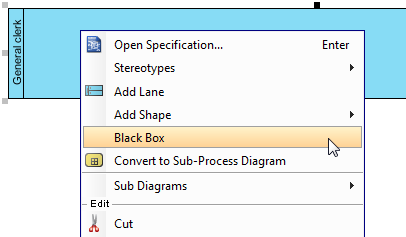
Right-click an empty pool (no lanes, no tasks!)
-
Select Black Box from the menu
 |
|---|
| Defining a black box |
| NOTE: | You can only create a black box for an empty pool that has neither flow objects nor lanes in it. |
|---|
✨ Real-World Win: I used black boxes in a cross-organization onboarding process. Instead of modeling the HR system’s internals, I represented it as a black box and connected message flows to show data exchanges. Stakeholders loved the clarity!
 |
|---|
| Black boxes with message flows in between |
Taming the “Stretchy” Pool: Manual Resizing Tips
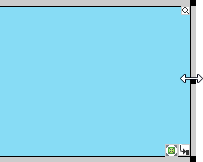
Ever tried to resize a pool and found it snapping back? I did—repeatedly. Turns out, Visual Paradigm auto-stretches pools to fit the diagram by default. Here’s how I took control:
-
Right-click the pool
-
Go to Presentation Options > Auto Stretch > Off
 |
|---|
| Pool can be resized freely when auto-stretch is turned off |
🎯 Why This Changed My Workflow: For complex processes with uneven task distribution, manual resizing lets me balance white space and improve readability. I now turn off auto-stretch for final polishing—never during initial drafting!
Going Deeper: Nested Lanes for Complex Hierarchies
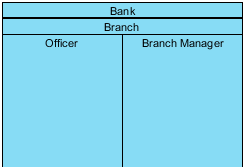
As my projects grew, so did organizational complexity. A single lane per role wasn’t enough. That’s when I embraced nested lanes.
To add a child lane:
-
Right-click an existing lane
-
Select Add Child Lane
 |
|---|
| Nested lanes |
🧩 Use Case That Clicked for Me: In a healthcare process, I had a “Clinical Team” pool. Inside, a “Nursing” lane contained child lanes for “Triage,” “Medication Admin,” and “Discharge Planning.” It mirrored real-world reporting structures and made audits way easier.
Quick Lane Shuffle: Reordering Without Rebuilding
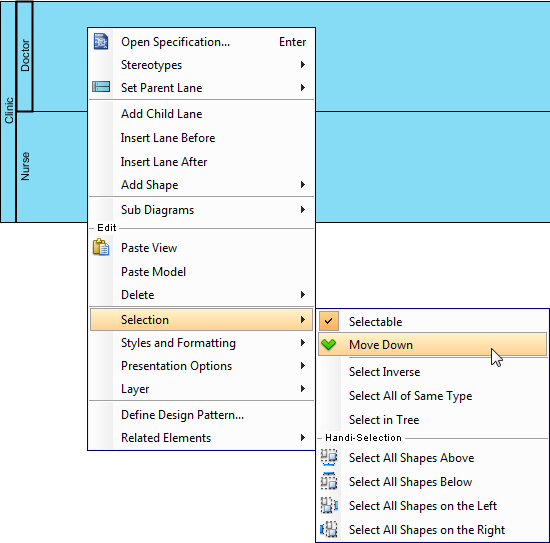
Ever built a diagram only to realize the lane order doesn’t match the actual workflow? I have—and rebuilding was painful. Then I learned the reorder trick:
-
Right-click the lane you want to move
-
Select Selection > Move Down (or Move Up)
 |
|---|
| Moving a lane downward |
⚡ Time-Saver: I keep my most frequent roles at the top. When processes evolve, reordering lanes takes seconds, not hours. Huge win for agile teams!
Conclusion: What I Wish I Knew When I Started
Looking back, mastering pools and lanes wasn’t about memorizing menu paths—it was about understanding why we model this way. Pools clarify boundaries; lanes bring transparency to internal workflows. Together, they turn chaotic processes into collaborative stories.
If I could give my beginner-self one piece of advice: Start simple, iterate often, and don’t fear the black box. Your diagrams serve people first—clarity beats completeness every time.
To everyone still learning: You’ve got this. Every expert was once a beginner staring at a blank canvas. Keep modeling, keep sharing, and never stop asking “How can this be clearer?”
Happy diagramming! 🎨✨
References & Further Learning
- BPMN Official Specification: The definitive source for BPMN notation standards and syntax guidelines.
- Business Process Diagram Feature Overview: Visual Paradigm’s documentation on BPMN diagramming capabilities and tooling.
- BPMN Tutorials Library: Step-by-step video and written tutorials for mastering BPMN modeling techniques.
- What is BPMN? Beginner’s Guide: A foundational introduction to BPMN concepts, symbols, and best practices.
- Visual Paradigm YouTube Channel: Video walkthroughs, feature demos, and community tips for Visual Paradigm users.
- Visual Paradigm Support Portal: Get help, submit feedback, or connect with the Visual Paradigm support team.
Related posts:
 Comprehensive Guide to Enhancing Stakeholder Understanding with UML Diagrams
The Ultimate Guide to AI-Powered Visual Modeling: Revolutionizing Diagramming Workflows
Streamlining Requirement Analysis: A Comprehensive Guide to AI-Generated Use Case Descriptions
The Comprehensive Guide to Mind Mapping: From Concept to AI-Powered Execution
Comprehensive Guide to Enhancing Stakeholder Understanding with UML Diagrams
The Ultimate Guide to AI-Powered Visual Modeling: Revolutionizing Diagramming Workflows
Streamlining Requirement Analysis: A Comprehensive Guide to AI-Generated Use Case Descriptions
The Comprehensive Guide to Mind Mapping: From Concept to AI-Powered Execution