


“What started as curiosity about AI diagramming turned into a complete workflow transformation for my team.”
Hey there! 👋 I’m Alex, a product manager who’s spent the last 7+ years wrestling with requirements docs, architecture diagrams, and stakeholder alignment. Like many of you, I’ve tried countless tools—from Miro to Lucidchart to draw.io. But nothing quite clicked… until I discovered Visual Paradigm’s AI ecosystem.
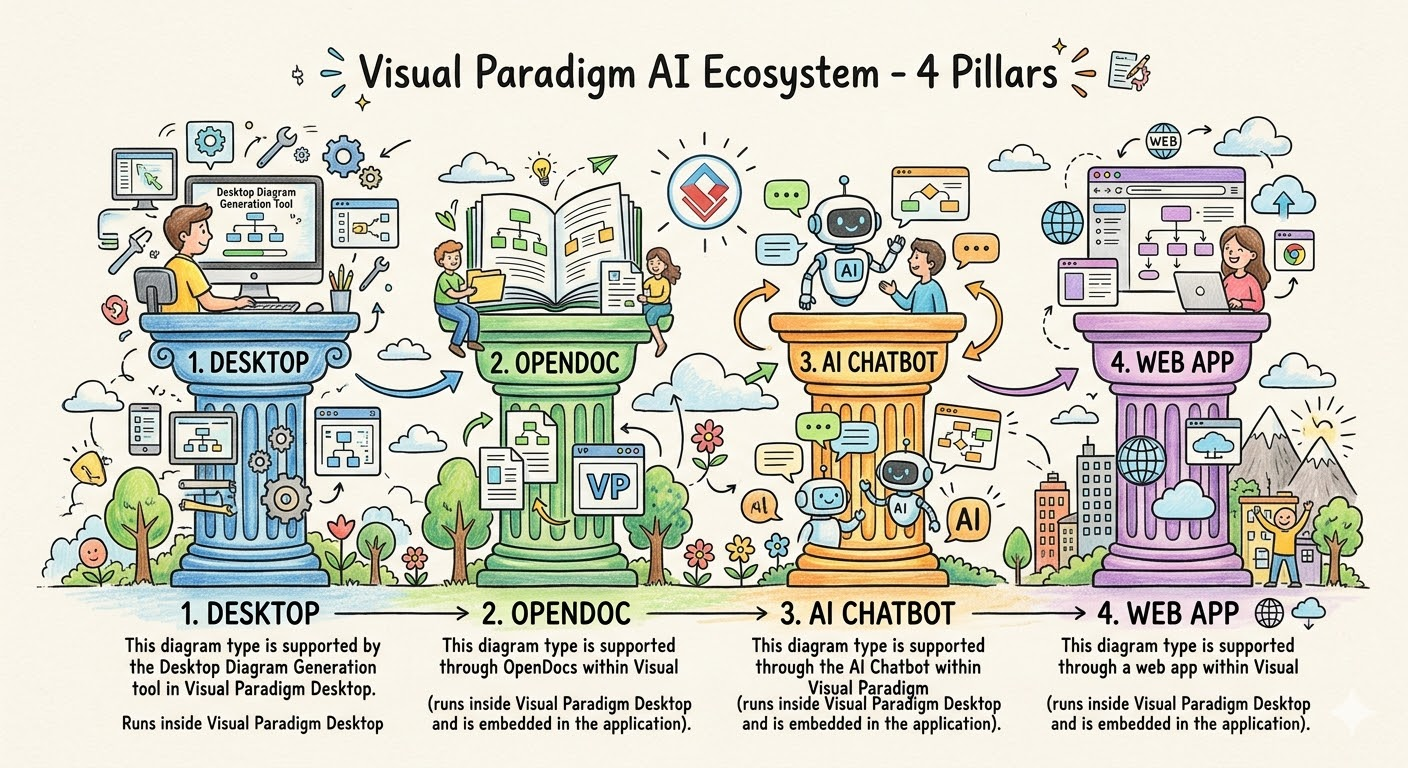
Today, I want to share my real, unfiltered experience using their four AI pillars—not as a sales pitch, but as a fellow practitioner who’s been in the trenches. Let’s dive in! 🎯
🌟 Why I Started Looking for Something New
Honestly? I was tired of the “diagram disconnect.”
You know what I mean:
-
✍️ I’d brainstorm a flow in a meeting
-
🖼️ Someone would redraw it in a tool later
-
📄 The final doc would have a static screenshot that was already outdated
-
🔁 Rinse, repeat… and watch team alignment slowly evaporate
I needed something that could keep up with the speed of thought—while still producing deliverables my engineering team would actually trust.
That’s when I found Visual Paradigm’s AI ecosystem. And wow—what a difference.
🔹 Pillar 1: VP Desktop – Where My “Serious Work” Lives
🎯 My First Impression
“Wait… this isn’t just another diagram tool. This is my engineering co-pilot.”
As someone who’s not a hardcore developer but needs to speak the language of architecture, VP Desktop felt like stepping into a professional studio. The interface is dense at first glance—but in the best way. It doesn’t dumb things down; it empowers you.
💡 What Changed My Workflow
-
AI-assisted modeling: I typed “Generate a class diagram for a user authentication module” and got a solid starting point in seconds. Then I refined it manually—adding constraints, relationships, notes. The AI didn’t replace my judgment; it accelerated my setup.
-
Code generation that actually works: I exported a refined component model to Java stubs. My devs were impressed—not because it was perfect, but because it was 90% there, saving hours of boilerplate work.
-
Traceability I could finally trust: When a requirement changed, I could see exactly which diagrams, classes, and tests were impacted. No more “Did we update the sequence diagram?” panic.
🛠️ My Go-To Use Cases
-
Finalizing system architecture before sprint planning
-
Reverse-engineering legacy code to document “what we actually have”
-
Preparing audit-ready deliverables for compliance reviews
✅ Pro Tip from My Experience: Don’t try to learn everything at once. Start with one diagram type you use often (e.g., Sequence or Class), master the AI prompt pattern, then expand. Small wins build confidence.
🔹 Pillar 2: OpenDocs – Where My Team Actually Collaborates
🎯 My “Aha!” Moment
“What if our documentation could breathe?”
OpenDocs felt like Notion met Miro—with superpowers. The moment I embedded a live UML diagram into a requirements doc and watched my tech lead edit it inline, I knew this was different.
💡 What Made the Difference
-
No more “diagram drift”: Previously, I’d update a Confluence page, forget to update the attached PNG, and create confusion. In OpenDocs, the diagram is the content. Edit the text? The diagram suggests updates. Change a step in the flow? The description auto-adjusts.
-
Real-time co-editing that doesn’t suck: My BA, UX designer, and backend engineer could all comment, suggest, and refine the same doc—without version chaos.
-
AI that understands context: I highlighted a paragraph about “user onboarding” and asked AI to “Generate a supporting activity diagram.” It didn’t just draw boxes—it inferred actors, decisions, and parallel flows based on my text.
🛠️ My Go-To Use Cases
-
Writing sprint retrospectives with embedded process flows
-
Creating onboarding wikis where new hires can interact with diagrams
-
Drafting stakeholder reports where visuals and narrative stay in sync
✅ Pro Tip from My Experience: Use OpenDocs for living docs—not final archives. Treat it like your team’s “workshop,” not the “museum.” Archive to PDF only when you need a snapshot.
🔹 Pillar 3: AI Visual Modeling Chatbot – My “Brainstorming Buddy”
🎯 My First Conversation
Me: “Show me a sequence diagram for a user resetting their password”
AI: [Generates clean diagram]
Me: “Add email verification and a 5-minute expiry”
AI: [Updates instantly]
Me: 😲
This was the gateway drug. The Chatbot didn’t just draw—it listened, asked clarifying questions, and learned my style.
💡 Why I Keep Coming Back
-
Zero friction ideation: No templates to select, no menus to navigate. Just talk. Perfect for those 3 AM “what if…” moments.
-
Great for non-modelers: I’ve shared the Chatbot link with product marketers and customer success folks. They can prototype user journeys without needing UML training.
-
Export anywhere: One click to send a draft to OpenDocs for refinement, or to VP Desktop for engineering handoff.
🛠️ My Go-To Use Cases
-
Pre-meeting prep: “Sketch a C4 container diagram for our new microservice”
-
Workshop facilitation: Live-generate diagrams based on team input
-
Learning aid: “Explain the difference between aggregation and composition” → AI shows examples
✅ Pro Tip from My Experience: Treat the Chatbot like a junior colleague. Give clear context, ask follow-ups, and always review the output. The best results come from collaboration, not delegation.
🔹 Pillar 4: AI Apps & Studios – My “Guardrails for Quality”
🎯 When Structure Saves the Day
“Sometimes, freedom is the enemy of progress.”
Early in a cloud migration project, my team was drowning in inconsistent architecture sketches. Then we tried the C4 PlantUML Studio.
💡 How It Changed Our Game
-
Step-by-step guidance: Instead of staring at a blank canvas, the studio asked: “What’s the system boundary?” → “Who are the primary actors?” → “What are the key containers?” It felt like having a senior architect beside me.
-
Best practices baked in: The tool gently nudged us: “Consider adding a ‘Logging Service’ container for observability” or “This component seems too large—could it be split?”
-
Consistency across teams: When three squads were designing related services, the same studio ensured we all spoke the same visual language.
🛠️ My Go-To Studios
-
C4 Studio: For architecture reviews with leadership
-
Use Case Studio: For aligning product and engineering on scope
-
Cloud Architecture Studio: For AWS/Azure migration planning (the AI suggested cost-optimized patterns I hadn’t considered!)
✅ Pro Tip from My Experience: Use Studios for repetitive, high-stakes modeling. Save the Chatbot for exploration. Let each tool play to its strength.
🔄 How I Actually Use Them Together: My Real Workflow
Here’s a recent example—building a new feature for our SaaS platform:
-
Monday AM (Ideation):
→ Used AI Chatbot over coffee: “Sketch a user flow for bulk data export with role-based permissions”
→ Refined through 3 quick prompts, exported to OpenDocs -
Monday PM (Alignment):
→ Shared OpenDocs link with product + eng leads
→ Team commented directly on diagram steps
→ AI suggested edge cases we’d missed (e.g., “What if export fails mid-process?”) -
Tuesday (Architecture):
→ Took the refined flow to C4 Studio
→ Built container/component diagrams with AI guidance
→ Validated against our security standards -
Wednesday (Engineering Handoff):
→ Imported final model into VP Desktop
→ Generated API interface stubs + database schema hints
→ Linked to Jira epics via traceability matrix -
Ongoing (Living Docs):
→ Kept the OpenDocs page as the “source of truth”
→ As the feature evolved, diagrams updated automatically
→ New team members onboarded by exploring the interactive doc
🎯 Result: What used to take 2 weeks of back-and-forth now takes 3 days—with higher quality and fewer misunderstandings.
🧭 Which Tool Should You Start With? (Based on My Journey)
| If you’re… | Start here | Why |
|---|---|---|
| A solo PM or BA | AI Chatbot | Lowest barrier, fastest value. Get ideas out of your head and into visuals instantly. |
| Leading a remote team | OpenDocs | Solves the “which version is current?” headache. Collaboration feels natural. |
| Preparing for an architecture review | C4 Studio (Web App) | Ensures you don’t miss critical layers. Leadership loves the clarity. |
| Handing off to engineering | VP Desktop | Generates artifacts devs actually use—not just pretty pictures. |
| Just curious about AI modeling | Any! Try the Chatbot first | No commitment. See if the “conversation-to-diagram” magic clicks for you. |
💡 My advice: Don’t overthink it. Pick one pain point you have this week. Try the tool that addresses it. Let the value pull you deeper.
🌈 The Unexpected Wins I Didn’t Expect
Beyond the obvious productivity boosts, here’s what surprised me:
✨ Better stakeholder conversations: When I show a live, editable diagram instead of a static slide, executives engage differently. They ask “what if” questions—and we can answer in the moment.
✨ Reduced onboarding time: New hires explore our OpenDocs wiki and interact with system diagrams. They understand context faster than reading 50-page specs.
✨ More confident decisions: With traceability built-in, I spend less time worrying “did we miss something?” and more time focusing on what matters.
✨ Joy in the work: Seriously—there’s something satisfying about turning a messy idea into a clean, connected model. It feels like craft, not chore.
🚧 Honest Limitations (Because Nothing’s Perfect)
To keep this real, here are a few things to watch for:
⚠️ Learning curve for VP Desktop: It’s powerful, but dense. Budget time for exploration—or start with the Chatbot/OpenDocs first.
⚠️ AI isn’t omniscient: Sometimes the Chatbot misinterprets a prompt. Solution? Iterate. Treat it like pair programming: you guide, it assists.
⚠️ Internet required for cloud tools: VP Desktop works offline, but Chatbot/OpenDocs/Web Apps need connectivity. Plan accordingly for secure environments.
⚠️ Pricing tiers: The full ecosystem is an investment. But for teams doing serious modeling, the ROI in time saved and errors avoided is real.
🔑 My takeaway: No tool is magic. But when you align the right pillar with the right task, the compound effect is transformative.
🎁 Final Thought: It’s Not About the AI—It’s About the Flow
At the end of the day, Visual Paradigm’s AI ecosystem didn’t just give me better diagrams.
It gave me a smoother flow—from idea to alignment to execution.
It turned modeling from a deliverable into a conversation.
And in a world where clarity is currency, that’s priceless.
If you’re on the fence: Try one pillar. Just one. See how it feels to turn thought into structure, faster.
You might just find, like I did, that the future of visual modeling isn’t about replacing humans—it’s about amplifying what we do best: thinking, collaborating, and building things that matter. 🙌
🔗 References (Tools & Resources I Used)
- VP Desktop – AI-Powered Professional Modeling: The flagship desktop application I use for final engineering models, code generation, and traceability [[35]].
- AI Visual Modeling Chatbot: My go-to for rapid ideation—turning natural language prompts into editable diagrams in seconds [[30]].
- OpenDocs – AI-Powered Knowledge Platform: Where my team collaborates on living documentation with embedded, editable diagrams [[22]].
- AI Web Apps & Studios: Guided, step-by-step modeling tools I use for C4 architecture, use cases, and cloud design [[40]].
- Visual Paradigm AI Ecosystem Overview: Helpful third-party breakdown of how the four pillars integrate [[7]].
- Ultimate Guide to Visual Paradigm AI: Detailed feature comparisons and workflow tips that accelerated my onboarding [[4]].
- AI Diagram Generator Comparison: Reference I bookmarked for diagram-type support across platforms [[3]].
- AI Chatbot Feature: Official docs I consulted for advanced prompting techniques [[31]].
- OpenDocs Documentation: Resource for setting up team workspaces and permissions [[23]].
- VP Desktop AI Features: Quick-start guide that helped me unlock AI tools in Desktop [[11]].
- C4 PlantUML Studio: The guided studio that brought consistency to our architecture reviews [[39]].
- AI Cloud Architecture Studio: Inspiration for our cloud migration planning [[2]].
- Use Case Modeling Studio: Tool I use to align product and engineering on scope [[38]].
- OpenDocs AI Diagram Generation: Release notes that tipped me off to new UML profile capabilities [[27]].
- Visual Paradigm AI Updates: How I stay current with cross-platform improvements [[19]].
Related posts:
 Comprehensive Guide to Visual Paradigm UML Tools and AI-Powered Modeling
 Visual Paradigm UML Tool: The Complete AI-Powered Modeling Guide for Modern Software Development
 📘 The Ultimate Guide: Sharing Visual Paradigm Flipbooks & Digital Bookshelves to OpenDocs
 My 30-Day Journey Mastering Visual Paradigm OpenDocs and the Pipeline Ecosystem