


New Introduction: Why I Finally Ditched My Old Documentation Workflow
Let me be honest: for years, my documentation process felt like a losing battle. I’d spend hours crafting beautiful architecture diagrams in one tool, export them as static PNGs, paste them into Confluence or Notion, and then—inevitably—forget to update them when the system changed. The result? Outdated docs that teammates stopped trusting, stakeholders confused by mismatched visuals, and me constantly playing catch-up.
When I first heard about Visual Paradigm OpenDocs, I was skeptical. Another “all-in-one” knowledge platform? Really? But after a colleague mentioned the Pipeline feature—a cloud-based bridge that syncs live, editable diagrams across tools—I decided to give it a serious 30-day trial. What I discovered wasn’t just a new tool; it was a fundamentally different way to think about technical knowledge management.
This isn’t a sponsored post or a feature dump. This is my genuine, hands-on experience as a product manager who’s tested dozens of documentation platforms. If you’re tired of static screenshots, version control nightmares, and disconnected workflows, read on. Here’s how OpenDocs and the Pipeline ecosystem changed my daily work—and how you can make it work for your team too.
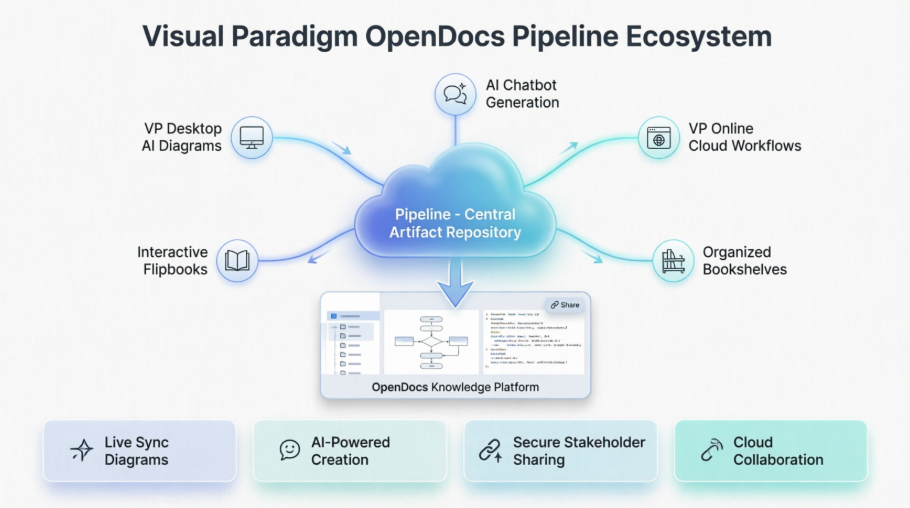
What Actually Makes OpenDocs Different? A User’s Perspective on the “Secret Weapons”
After using OpenDocs daily for a month, I can confidently say its power doesn’t come from any single feature—it’s the combination that eliminates the friction points I’d accepted as “just part of the job.” Here’s what stood out in real-world use:
🔑 The Pipeline: Finally, a Single Source of Truth That Works
“I used to waste 20 minutes every Tuesday just hunting down the latest version of our API flowchart. Now? It’s just… there.”
The Pipeline isn’t just marketing jargon. It’s a secure cloud repository that acts as the connective tissue between Visual Paradigm Desktop, Online, the AI Chatbot, and OpenDocs. In practice, this means:
- No more manual exports: When I update a UML diagram in Desktop, I click “Send to Pipeline” and it’s instantly available in my OpenDocs pages.
- Live, editable diagrams: Unlike static PNGs, these diagrams stay “alive.” If a developer updates the model, I can refresh the embed in OpenDocs with one click—no re-uploading, no broken links.
- Version clarity: Every artifact in the Pipeline shows its source, timestamp, and edit history. No more guessing which diagram is current.
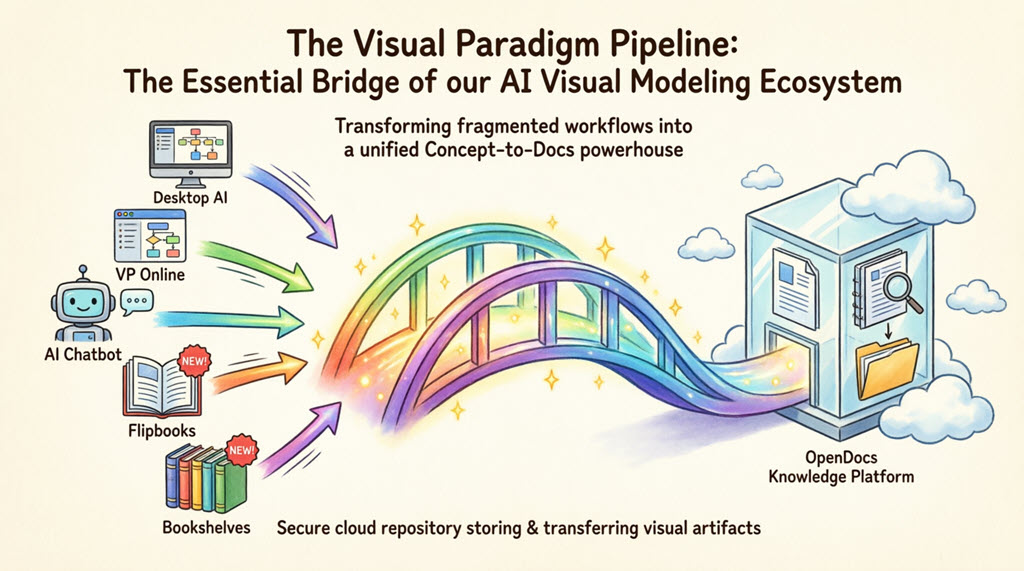
🔑 AI Diagram Generation: When “Describe It and Get It” Actually Works
I’ll admit: I was wary of AI diagram tools. Most feel gimmicky. But OpenDocs’ AI Generator surprised me. I typed: “Show a microservice architecture for an e-commerce platform with user auth, product catalog, order processing, and payment services”—and within seconds, a clean, editable component diagram appeared.
Was it perfect out of the box? No. But it gave me a 90% starting point I could refine in minutes, not hours. For brainstorming sessions or quick stakeholder updates, this feature alone saved me countless hours.
🔑 Live Diagrams vs. Static Images: The Difference Is Night and Day
This is the feature that sold me. In my old workflow, a diagram change meant: export → rename → upload → replace → notify team. With OpenDocs + Pipeline:
- Update the source diagram in Visual Paradigm
- In OpenDocs, click “Refresh” on the embedded diagram
- Done. The documentation updates automatically.
No more “Wait, is this the latest version?” conversations. No more stale screenshots in onboarding docs. Just living documentation that evolves with your project.
🔑 Hierarchical Knowledge Tree: Organizing at Scale
For our enterprise project (12 teams, 50+ microservices), flat documentation was a disaster. OpenDocs’ nested “Knowledge Tree” let me mirror our repo structure: /backend/services/auth, /frontend/components, /api-specs/v2. Finding docs became intuitive, not a scavenger hunt.
🔑 Secure Sharing That Doesn’t Require Training
Sharing with non-technical stakeholders used to mean exporting PDFs or scheduling screen shares. With OpenDocs, I generate a read-only link, add a clear description (“Q3 Architecture Review – External Partners”), and send. They view the full interactive doc in-browser—no login, no software install. And with Share History, I can audit who has access and retire old links anytime.
Staying Organized: How Share History Became My Documentation Command Center
Early in my trial, I shared five different versions of our onboarding guide with various teams. Within a week, I’d lost track of which link went where. That’s when I discovered Browse Share History—and it became indispensable.
Why Share History Matters in Real Projects
When you’re managing documentation for multiple audiences (engineering, product, executives, clients), you’ll generate many share links. Share History helps you:
- Audit access: See exactly which pages were shared, when, and with what description.
- Track versions: Distinguish between a static snapshot sent to legal vs. a live link for the dev team.
- Clean up proactively: Identify and revoke outdated links before they cause confusion.
How I Use It: A Simple Workflow
- Open the Share Dialog: Click the Share button in OpenDocs’ top-right corner.
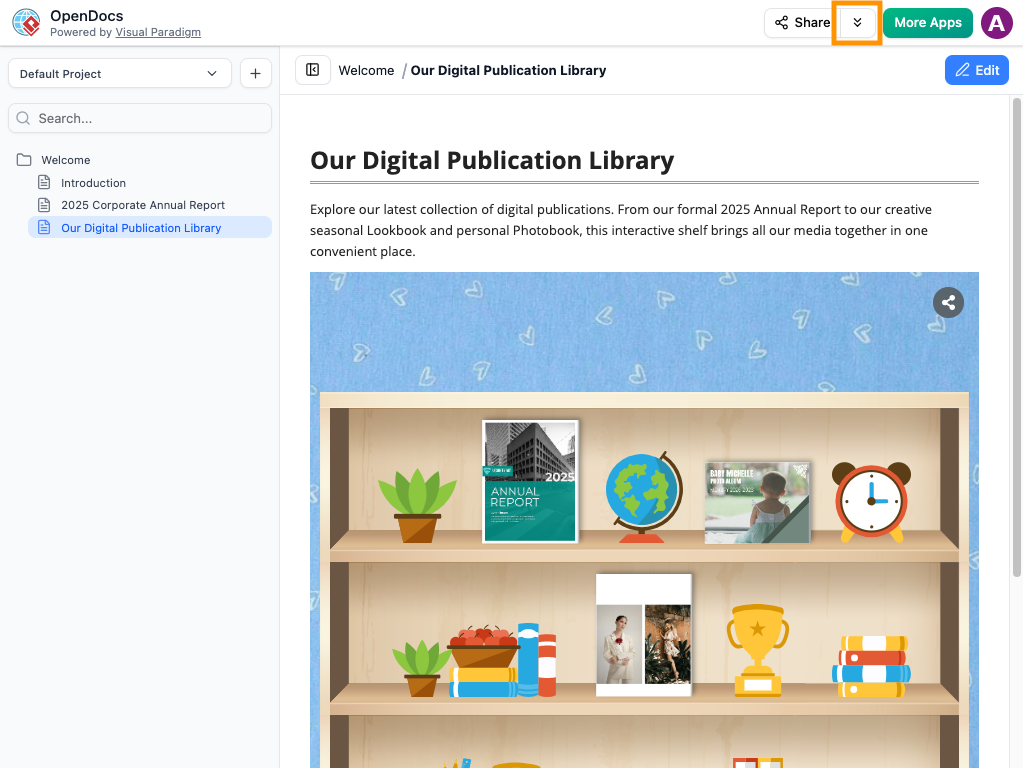
- View History: Select Browse Share History from the menu.
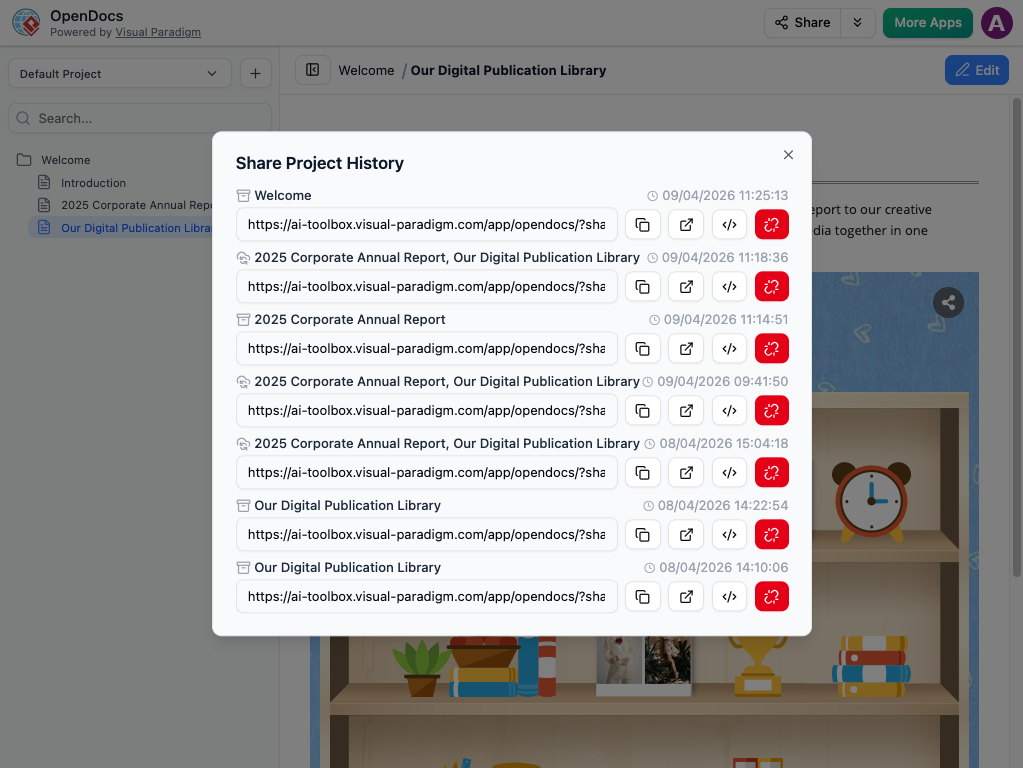
- Review & Manage: I scan the list weekly. If a link says “Draft – Do Not Share,” I revoke it. If a stakeholder loses their link, I copy it again in seconds.
My Pro Tips for Organized Sharing
- Describe every share: “Internal HR Policy – July Update” is infinitely clearer than “Page 3 Share.”
- Schedule monthly cleanups: I block 15 minutes on the last Friday of each month to review and prune old links.
- Use Static vs. Live intentionally: Send static snapshots for final approvals; use live links for collaborative teams.
Want to try it? The OpenDocs feature page has a free trial.
The Pipeline in Practice: My 5 Real-World Use Cases
The Pipeline isn’t theoretical—it’s the engine that makes OpenDocs powerful. Here’s how I’ve used each of the five core connections:
1. Visual Paradigm Desktop → OpenDocs: For Complex System Designs
When documenting our new authentication service, I built a detailed UML sequence diagram in Desktop. Instead of exporting a PNG, I right-clicked → Export > Send to OpenDocs Pipeline.
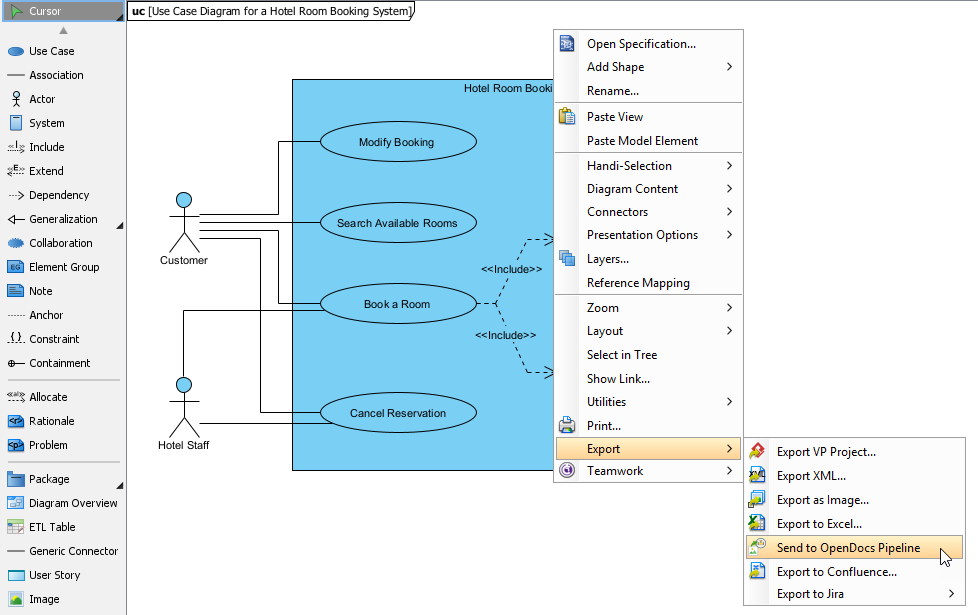
Minutes later, in OpenDocs, I clicked Insert > Pipeline and dropped the live diagram into our security spec. When the engineering team updated the flow, I refreshed the embed—no rework.
Best for: Power users who need pixel-perfect control over complex models (UML, SysML, BPMN).
2. Visual Paradigm Online → OpenDocs: For Quick, Cloud-Native Workflows
For a marketing campaign flowchart, I used VP Online in my browser. Once done, Export > Send to OpenDocs Pipeline moved it directly to our campaign knowledge base.
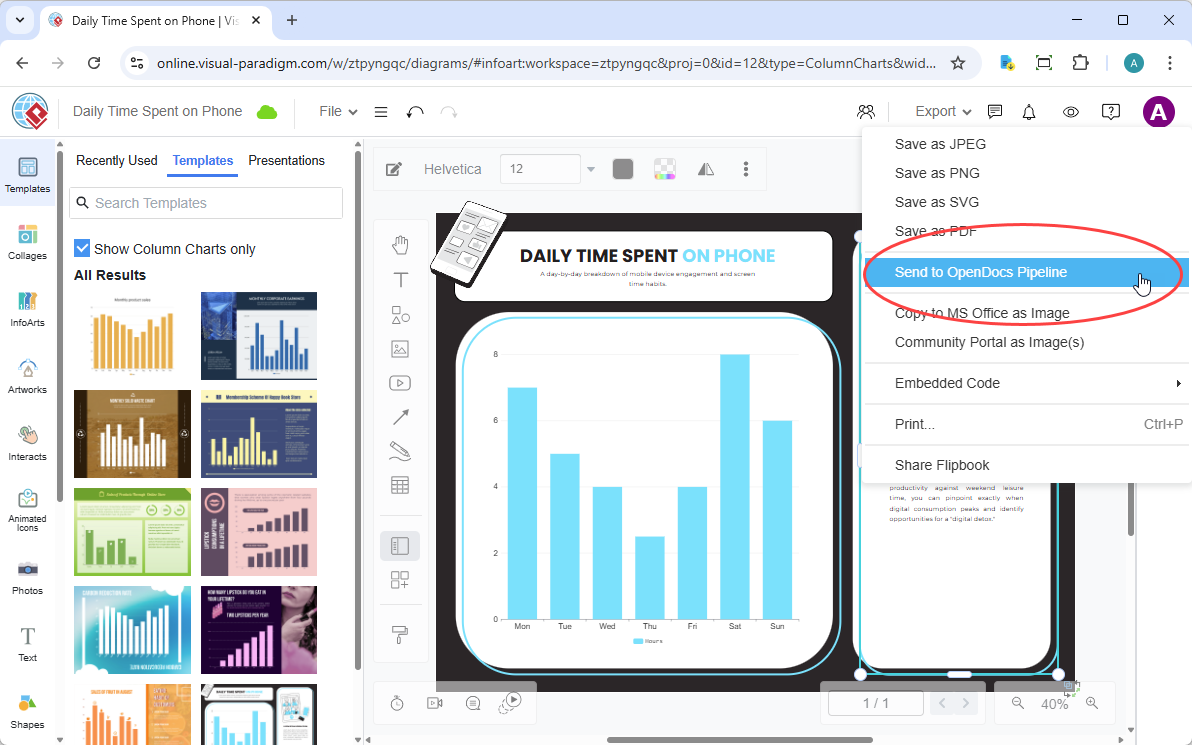
No downloads, no file management. Just seamless cloud-to-cloud transfer.
Best for: Remote teams, quick diagrams, non-technical creators.
3. AI Chatbot → OpenDocs: For Rapid Prototyping
Stuck on how to visualize our data pipeline? I asked the AI Chatbot: “Generate a data flow diagram for user analytics ingestion.” It produced a clean DFD in seconds. I clicked Export > Send to OpenDocs Pipeline, and it was ready to embed.
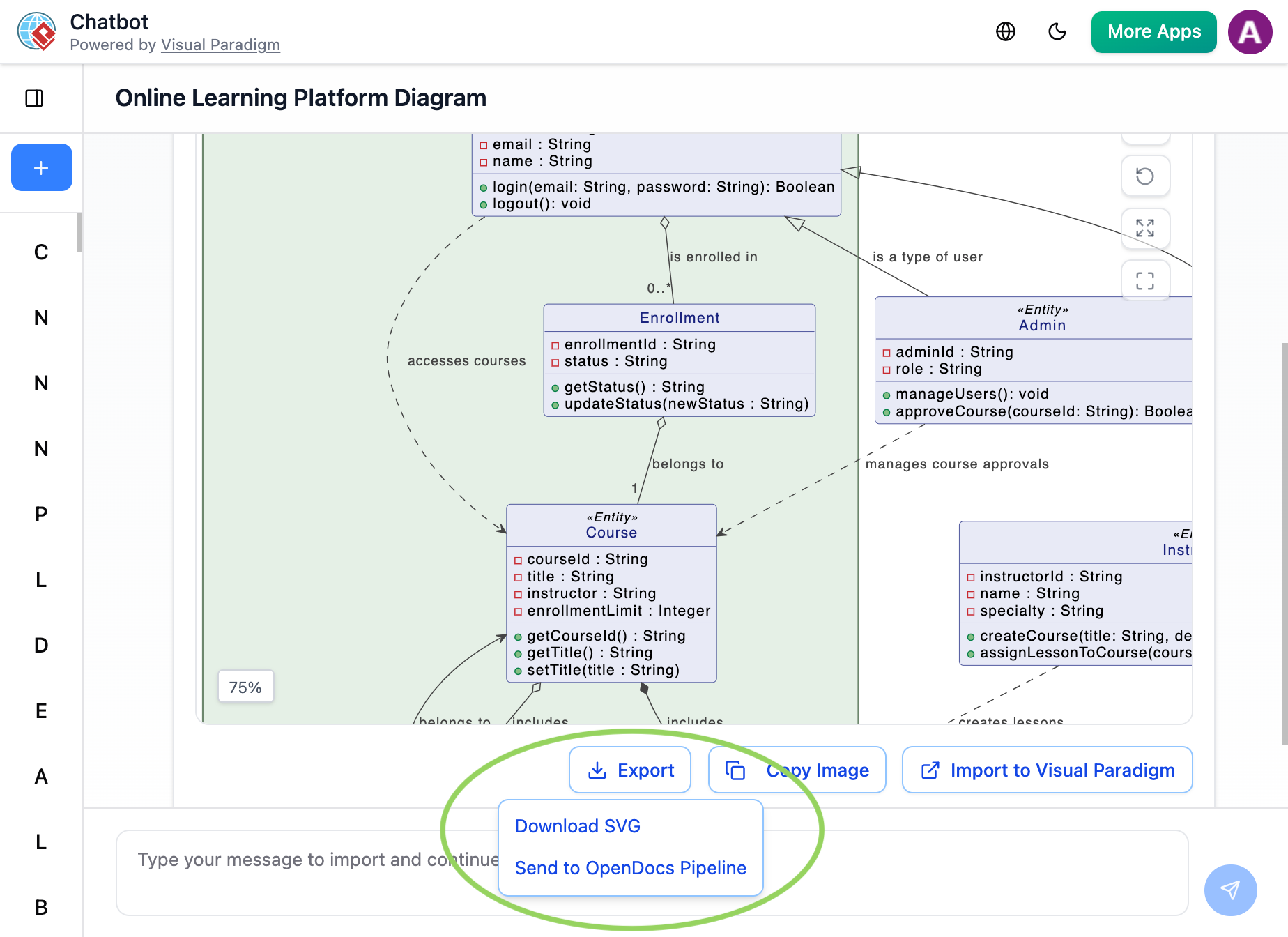
Best for: Brainstorming, early-stage design, overcoming blank-page syndrome.
4. Flipbooks → OpenDocs: For Rich Media Documentation (New!)
I embedded a product catalog Flipbook directly into our sales enablement docs. Stakeholders could flip through pages without leaving OpenDocs—no PDF attachments, no broken links.
Best for: Marketing collateral, training materials, interactive guides.
5. Bookshelves → OpenDocs: For Scaling Knowledge Libraries (New!)
When onboarding 20 new engineers, I sent our entire “Engineering Onboarding” Bookshelf to OpenDocs. New hires got a centralized, searchable library—not a chaotic folder of PDFs.
Best for: Large teams, compliance docs, multi-project knowledge bases.
Pipeline vs. Traditional Workflow: What Changed for Me
| My Old Workflow | With OpenDocs + Pipeline |
|---|---|
| Export diagram as PNG → rename → upload to wiki | Click “Send to Pipeline” → embed in OpenDocs |
| Manual re-upload every time the diagram changed | One-click “Refresh” to sync latest version |
| Static images that couldn’t be edited in docs | Live, editable diagrams that stay in sync |
| Files scattered across local drives and cloud folders | Centralized cloud repository with version history |
| Stakeholders confused by outdated visuals | Everyone sees the single source of truth |
The time savings were immediate. But the bigger win? Trust. When docs are always current, teams actually use them.
Core Technical Features: What Worked (and What Didn’t) in My Testing
✅ Extensive Diagram Support: UML, BPMN, ERD, Flowcharts, Mind Maps—I could create everything I needed without switching tools.
✅ Cloud-Based Accessibility: Being fully browser-based meant I could collaborate with remote teammates instantly. No installation headaches.
⚠️ Learning Curve: The Pipeline concept took a day or two to click. Once it did, though, it felt intuitive.
⚠️ Enterprise Permissions: For very large orgs, granular role management could be more flexible—but it covered 95% of my needs.
New Conclusion: Is OpenDocs Right for Your Team? My Honest Verdict
After 30 days of daily use, here’s my takeaway: Visual Paradigm OpenDocs isn’t for everyone—but if you live in technical documentation, it’s transformative.
If your team struggles with:
- Outdated diagrams in wikis
- Version control nightmares
- Disconnected tools for writing and visualizing
- Sharing complex info with non-technical stakeholders
…then OpenDocs + Pipeline is worth a serious look. It won’t magically solve every documentation problem, but it removes the friction that makes docs feel like a chore.
The “secret weapons” aren’t gimmicks—they’re thoughtful solutions to real pain points. Live diagrams that stay in sync? A game-changer. AI that jumpstarts diagram creation? Surprisingly useful. A Pipeline that unifies your visual ecosystem? Finally, a single source of truth that works.
My recommendation: Start small. Try the free trial. Send one diagram through the Pipeline. Embed it in a test doc. See how it feels. If it saves you even 30 minutes a week, it’s paid for itself.
The future of knowledge management is visual, intelligent, and connected. After using OpenDocs, I’m convinced that future isn’t coming—it’s already here.
Ready to test it yourself? Start with the free trial at ai.visual-paradigm.com/tool/opendocs and see if the Pipeline workflow clicks for your team.
References
- Visual Paradigm OpenDocs: The Complete Guide to AI-Powered Knowledge Management and Diagram Generation: A comprehensive walkthrough of OpenDocs features, AI capabilities, and practical use cases for technical teams seeking to unify documentation and diagramming workflows.
- OpenDocs Features Overview: Official feature listing from Visual Paradigm detailing OpenDocs’ core capabilities, including rich text editing, diagram support, and cloud collaboration tools.
- Visual Paradigm OpenDocs: The Complete Developer’s Guide to AI-Powered Technical Documentation: Developer-focused guide covering advanced OpenDocs workflows, API integrations, and best practices for embedding live diagrams in technical specs.
- OpenDocs Tool Page: Official product landing page with feature highlights, use cases, and direct access to start using the OpenDocs knowledge management platform.
- Harnessing Visual Paradigm’s AI for Diagram Generation: The Ultimate 2026 Guide: In-depth exploration of AI-powered diagram creation across the Visual Paradigm ecosystem, including prompt engineering tips and workflow optimization strategies.
- OpenDocs Update: AI Flowchart Generator: Release notes detailing new AI flowchart generation capabilities within OpenDocs, including use cases and implementation guidance.
- Sync AI Diagrams to OpenDocs Pipeline Guide: Step-by-step tutorial for exporting diagrams from Visual Paradigm Desktop to OpenDocs via the Pipeline, ensuring live synchronization and version control.
- From Idea to Enterprise: My Journey Through Visual Paradigm’s Four AI Pillars: Personal case study exploring how the four core Visual Paradigm AI tools—Desktop, Chatbot, OpenDocs, and Web Apps—work together for end-to-end project delivery.
- OpenDocs Professional: Mind Map Integration Update: Announcement and guide for the new mind mapping capabilities in OpenDocs, enabling visual brainstorming and hierarchical knowledge organization.
- New in OpenDocs: AI-Powered Data Flow Diagram (DFD) Support: Feature release detailing AI-assisted DFD creation within OpenDocs, with examples for system analysis and process documentation.
- OpenDocs Update: AI Component Diagram Generator: Release notes covering new AI capabilities for generating software component diagrams, supporting microservice architecture documentation and system design workflows.
- From Model to Manual: A Software Engineer’s Guide to Syncing Visual Paradigm Desktop Diagrams with OpenDocs: Practical engineering-focused walkthrough of syncing live diagrams from Desktop to OpenDocs via the Pipeline.
- New Feature: Export OpenDocs Knowledge Bases Directly to WordPress: Release notes and setup guide for publishing OpenDocs content directly to WordPress sites with one-click integration.
- Visual Paradigm Pipeline: The Bridge for AI Modeling Ecosystem: Conceptual overview of how the Pipeline connects Visual Paradigm’s four AI pillars for seamless artifact flow.
- My Journey to Seamless Documentation: Sending Visual Paradigm Creations Directly to OpenDocs: First-person account of adopting the Pipeline workflow, with before/after productivity metrics and lessons learned.